Author: The AI Team

  • Basic Math – Quick Start Guide

    [wc_accordion collapse=”1″ leaveopen=”0″ layout=”box”]

    [wc_accordion_section title=”Installing the Plug-In”]

    Installing the Plug-In

    You should have installed your Infusionsoft Pocket Developer plug-in using the instructions provided, if for any reason you have not installed your Pocket Developer plug-in click here to learn how.
    [/wc_accordion_section]

    [wc_accordion_section title=”Configuring the HTTP Post Snippet”]

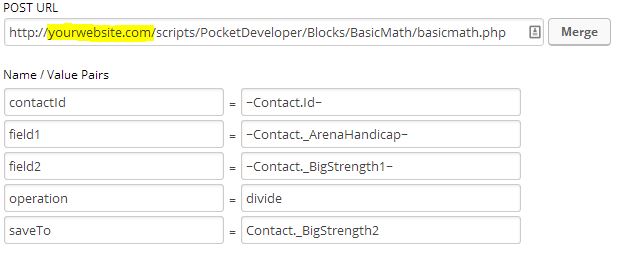
    Configuring the HTTP Post Snippet
    Basic-Math


    [wc_box color=”inverse” text_align=”left”]

    cautionNOTE: Everything in an HTTP POST is case sensitive. That includes the URL, the parameters on the left and the field names on the right. If caPitaLizaTion is wrong, your post will not work.
    [/wc_box]

    [wc_box color=”inverse” text_align=”left”]

    hazardANOTHER NOTE: The merge field in the saveTo parameter should never have tildes around it (~). If you use the merge button to add a field, make sure to remove them for this parameter. We are saving to, not merging from.
    [/wc_box]


    URL:

    The URL, on your server, where the Pocket Developer script is stored. For example:
    http://yourdomain.com/scripts/PocketDeveloper/Blocks/TagsFly/tagsfly.php
    Required Name/Value Pairs:

    field1

    • This is field one of two whose value will be the basis for some basic operation.
    • It can be any standard or custom contact field. Alternatively, the value assigned to this variable can be a literal constant like 3, 2, 2.1, etc.

    field2

    • This is field two of two whose value will be the basis for some basic operation.
    • It can be any standard or custom contact field. Alternatively, the value assigned to this variable can be a literal constant like 3, 2, 2.1, etc.

    operation

    • This is the name of the basic operation to be performed on ‘field1’ and ‘field2.’
    • It can be any of the following: ‘add’, ‘addition’, ‘subtract’, ‘subtraction’, ‘multiply’,’multiplication’, ‘divide’, ‘division’saveTo (Optional if using ‘request’)
    • This is the field where the result of the evaluation will be stored, suchas _ArenaHandicap or Contact._CustomField1

    contactId

    • This is the contact Id for the contact record where fields will be retrieved(if any) and where the result of the arithmetic will be stored

    Optional Name Value/Pairs:

    request

    • This is a URL to query at the end of the operation. The merge field {result}can be placed anywhere within the URL to include the result of the operation,allowing you to pass the value to another script

    [/wc_accordion_section]

    [wc_accordion_section title=”Demo Video”]

    Demo Video

    [/wc_accordion_section]

    [wc_accordion_section title=”Pro Tips”]

    Pro Tips

    [/wc_accordion_section]

    [wc_accordion_section title=”Frequently Asked Questions”]

    Frequently Asked Questions

    [/wc_accordion_section]

    [wc_accordion_section title=”Buy Basic Math”]

    Buy Basic Math

    You can buy Basic Math from our plug-in store.
    [/wc_accordion_section]
    [/wc_accordion]

  • Any Date, Any Format, Anywhere – Quickstart Guide

    [wc_accordion collapse=”1″ leaveopen=”0″ layout=”box”]

    [wc_accordion_section title=”Installing the Plug-In”]

    Installing the Plug-In

    You should have installed your Infusionsoft Pocket Developer plug-in using the instructions provided when you purchased the plug-in.

    If, for any reason, you have not installed your Pocket Developer plug-in, follow these simple instructions, to learn how.
    [/wc_accordion_section]

    [wc_accordion_section title=”Configuring the HTTP Post Snippet”]

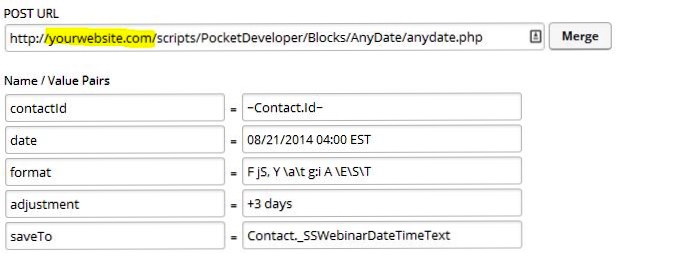
    Configuring the HTTP Post Snippet

    any-date

    [wc_box color=”inverse” text_align=”left”]

    cautionNOTE: Everything in an HTTP POST is case sensitive. That includes the URL, the parameters on the left and the field names on the right. If caPitaLizaTion is wrong, your post will not work.
    [/wc_box]

    [wc_box color=”inverse” text_align=”left”]

    hazardANOTHER NOTE: The merge field in the saveTo parameter (and the date parameter if you are using a merge field) should never have tildes around it (~). If you use the merge button to add a field, make sure to remove them for these parameters.
    [/wc_box]

    URL: The URL, on your server, where the Pocket Developer script is stored. For example:

    http://yourdomain.com/scripts/PocketDeveloper/Blocks/AnyDate/anydate.php

    Required Name Value/Pairs:

    date

    • This field should contain one of the following:

    1. A text string representing a valid date or date and time, such as “January 1, 2014 1:04 PM” or “01/01/2014 01:04:33 PM” or “January 1st, 2014” or “01/01/2014” etc.
    2. The text “today”, which will result in using the current date or “now”, which returns current date and time.
    3. A custom field that is holding a date, date/time value, or a text representation of a date, such as Anniversary, Birthday, or _MyCustomDate

    [wc_box color=”inverse” text_align=”left”]
    WarningNOTE: If you merge in a dateTime field for this value, only the date will be extracted.
    [/wc_box]
    format

    • The format is made up of codes, specified by PHP.
    • Examples of valid codes are:
      • Y-m-dTH:i:s     // This is Infusionsoft’s date format and MUST be used for any Infusionsoft date or dateTime field
      • d-m-Y    // returns 22-09-2014
      • F jS    // returns Thursday, September 22nd
    • See sections below for more date time codes and formats

    saveTo (Optional if using ‘request’)

    • This is the field where the result of the formatted date will be stored, such as Anniversary, Birthday, _MyCustomDate or _webinarPrettyDate

    contactId

    • This is the contact Id for the contact record where fields will be retrieved (if any) and where the formatted date will be stored

    Optional Name/Value Pairs:

    time

    • This field should contain one of the following:

    1. A time or date & time which is structurally valid among common standards, such as “January 1, 2014 1:04 PM” or “01/01/2014 01:04:33 PM”
    2. A merge field containing a valid text representation of a time or date and time, per #1 above.
    3. The text “now” which will result in using the current time
    4. An Infusionsoft dateTime field, such as _WebinarDateTime

    [wc_box color=”inverse” text_align=”left”]
    WarningNOTE: If you merge in a dateTime field for this value, only the time will be extracted. Also, if you include a supported timezone code in your time value, please make sure it is using all capital letters (unless it’s an identifier), and that it appears as the last item in the time field. This will be overridden by any timezone values in the timezone parameter, if supplied. If no timezones are designated, assume that all times are in Eastern Time as is the standard with Infusionsoft.
    [/wc_box]

    adjustment

    • The “adjustment” field should provide a relative date format string similar to PHP’s strtotime function.
    • Some valid examples of this value are “+5 weeks” or “second month” or “last day of next month” or “yesterday noon”
    • See below for more examples of valid adjustments

    timezone

    • When the date & time fields are not based on Eastern Time, the user may designate the appropriate originating timezone with any of the supported timezone codes/identifiers specified in the “Supported Timezone Codes” section.
    • Timezone abbreviations should always be in all capital letters, unless using identifiers. If no timezone is supplied, it is assumed to be Eastern (see list of Supported Time Zone Codes below)

    convertToTZ

    • In the event that the user would prefer to have a time automatically adjusted to some other timezone, they may supply a timezone code/identifier within this parameter following the same rules that apply to the timezone parameter above. (see list of Supported Time Zone Codes below)
    • Adjustments made to the date/time with the “adjustment” parameter are made after the timezone conversion is completed.

    request

    • This is a URL to query at the end of the operation. The merge field {result} can be placed anywhere within the URL to include the result of the operation, allowing you to pass the value to another script

    [/wc_accordion_section]

    [wc_accordion_section title=”Demo Video”]

    Demo Video

    [/wc_accordion_section]

    [wc_accordion_section title=”Common Date Formats”]

    Common Date Formats

    [wc_box color=”inverse” text_align=”left”]

    hazardNOTE: If the saveTo field is a Date or DateTime field, you MUST use the Infusionsoft date/time format of Y-m-dTH:i:s. If your post is running but not populating the field, this is the likely culprit.
    [/wc_box]

    Assuming date is 09/22/2014 and time is 08:00 and server is using Eastern Time Zone:

    • Y-m-dTH:i:s     // This is Infusionsoft’s date format and MUST be used for any Infusionsoft date or dateTime field // returns 2014-09-22 08:00:00
    • m-d-Y     // returns 09-22-2014
    • d-m-Y     // returns 22-09-2014
    • F jS     // returns Thursday, September 22nd
    • m jS     // returns Sep 22nd
    • Ymd     // returns 20140922

    [/wc_accordion_section]

    [wc_accordion_section title=”Common Date Formatting Codes”]

    Common Date Formatting Codes

    Below is a summary of the most common date and time codes you can use in the format parameter of Any Date, Any Format, Anywhere. Remember they ARE CaSe sEnsItIVe:
    [wc_row][wc_column size=”one-half” position=”first”]

    DAYS
    d – day of the month 2 digits (01-31)
    j – day of the month (1-31)
    D – 3 letter day (Mon – Sun)
    l – full name of day (Monday – Sunday)
    N – 1=Monday, 2=Tuesday, etc (1-7)
    S – suffix for date (st, nd, rd)
    w – 0=Sunday, 1=Monday (0-6)
    z – day of the year (1=365)

    WEEK
    W – week of the year (1-52)

    MONTH
    F – Full name of month (January – December)
    m – 2 digit month number (01-12)
    n – month number (1-12)
    M – 3 letter month (Jan – Dec)
    t – Days in the month (28-31)

    [/wc_column][wc_column size=”one-half” position=”last”]

    YEAR
    L – leap year (0 no, 1 yes)
    o – ISO-8601 year number (Ex. 1979, 2006)
    Y – four digit year (Ex. 1979, 2006)
    y – two digit year (Ex. 79, 06)

    TIME
    a – am or pm
    A – AM or PM
    B – Swatch Internet time (000 – 999)
    g – 12 hour (1-12)
    G – 24 hour c (0-23)
    h – 2 digit 12 hour (01-12)
    H – 2 digit 24 hour (00-23)
    i – 2 digit minutes (00-59)
    s 0 2 digit seconds (00-59)
    T – timezone (Ex: GMT, CST)
    [/wc_column][/wc_row]
    [/wc_accordion_section]

    [wc_accordion_section title=”Date/Time Adjustments”]

    Date/Time Adjustments

    Assuming date is 09/22/2014 and time is 08:00 and server is using Eastern Time Zone:

    • +1 day     // returns 09/23/2014 08:00
    • +1 week     // returns 09/29/2014 08:00
    • -17 hours     // returns 09/21/2014 15:00
    • +1 week 2 days 4 hours 2 seconds // returns 10/01/2014 8:38 PM
    • next Thursday     // returns 09/25/2014 00:00
    • last Monday     // returns 09/15/2014 00:00
    • third Thursday of next month     // returns 10/15/2014 00:00

    [/wc_accordion_section]

    [wc_accordion_section title=”Supported Timezone Codes”]

    Supported Timezone Codes

    In the event you can’t find a timezone for your region within the list below, you may also use any of the timezone identifiers supplied at this PHP documentation page; some examples of these identifiers are America/New_York, Canada/Atlantic, etc.

    United States
    Code Timezone, State, or Region Notes
    ETUS Eastern Time No exclusions
    CTUS Central Time No exclusions
    MTUS Mountain Time Excluding Arizona
    AZUS Arizona (No DST) No exclusions
    PTUS Pacific Time No exclusions
    ATUS Alaska Time No exclusions
    HTUS Hawaii/Aleutian Time Excluding Honolulu
    HONOUS Honolulu No exclusions
    Australia
    Code Timezone, State, or Region Notes
    WTAU Western Australia Time; Western Australia Excluding Eucla
    EUAU Eucla, Australia Time; Western Australia No exclusions
    NCTAU North Central Australia Time; Northern Territory No exclusions
    SCTAU South Central Australia Time; South Australia No exclusions
    NETAU North Eastern Australia Time; Queensland No exclusions
    SETAU South Eastern Australia Time;
    New South Wales, Victoria, and Tasmania
    No exclusions
    New Zealand
    Code Timezone, State, or Region Notes
    NZ New Zealand Time No exclusions
    Europe
    Code Timezone, State, or Region Notes
    WTEU Western European Time Excluding Iceland
    CTEU Central European Time No exclusions
    ETEU Eastern European Time No exclusions
    ICEEU Iceland (No DST) No exclusions
    Canada
    Code Timezone, State, or Region Notes
    PTCA Pacific Time; Yukon and British Columbia No exclusions
    MTCA Mountain Time;
    part of Nunavut Northwest Territories,
    Alberta, Saskatchewan
    No exclusions
    CTCA Central Time;
    part of Nunavut, Manitoba, some of Ontario
    No exclusions
    ETCA Eastern Time;
    most of Ontario, Quebec, Baffin Island
    No exclusions
    ATCA Atlantic Time; Nova Scotia, New Brunswisk No exclusions
    NTCA Newfoundland Time No exclusions

    [/wc_accordion_section]

    [wc_accordion_section title=”Advanced Merge Field Notation”]

    Advanced Merge Field Notation

    Any Date, Any Format, Anywhere can use our Advanced Merge Field Notation anywhere a merge field is allowed. Advanced Merge Field Notation allows you to use merge fields from any table, e.g. Opportunity, Invoice, Company, Referral, Appointment, etc. It also allows you to Filter, Count, Max, Min, Compare and other advanced functionality.  Make sure that you do not include tildes (~) when using Advanced Merge Field Notation.

    See the Advanced Merge Field Notation documentation for more details.
    [/wc_accordion_section]

    [wc_accordion_section title=”Pre-Fetch”]

    Pre-Fetch

    Any Date, Any Format, Anywhere can build advanced data sets using our pre-fetch functionality. Pre-fetch allows you to find one piece of information, such as an ID, and pass it.

    For example, you may pre-fetch the Referrer Id before using it to get information in the referrer’s contact record. This reduces the number of post snippets in a campaign and eliminates having to store a value in a field for the next step.

    See the Pre-Fetch documentation for more details.
    [/wc_accordion_section]

    [wc_accordion_section title=”Contact Override”]

    Contact Override

    Any Date, Any Format, Anywhere plug-in can get, update or delete information related to a contact other than the one going through the campaign, using our override functionality.

    For example, you may add a date in the refering contact’s record, to indicate last date one of their referrals purchased, for example, as the referred contact moves through the campaign.

    See the Override documentation for more details.
    [/wc_accordion_section]

    [wc_accordion_section title=”Pro Tips”]

    Pro Tips

    Use Any Date with Email Anyone Anytime to create custom invoices, alerts and reminders that display dates in the European format.
    [/wc_accordion_section]

    [wc_accordion_section title=”Frequently Asked Questions”]

    Frequently Asked Questions

    Q. Can’t I do the same thing with PlusThis?

    A. PlusThis can only do three things with dates (in the contact record only): humanize a date in one of seven pre-defined formats, add days or months to date and time fields (in the contact record only) and store in a field in the contact record, and calculate the time between two dates.

    Any Date, Any Format, Anywhere is different from PlusThis is fundamental ways:

    • PlusThis limits you to pre-defined fields, formats and functionality that are available in the user interface. Any Date, Any Format, Anywhere is only limited by your imagination.
    • PlusThis limits input to a date or date/time in a contact record. This is very limiting and wastes a custom field. Any Date Anywhere takes any field as input, in any table (e.g. Opportunity, Invoice, Company, Referral, Appointment, etc.) including text (e.g next Thursday or September 13)
    • PlusThis can only adjust by a set number of days or months in a dropdown. Any Date Anywhere can adjust by anything from 1 nanosecond to 100 years. It can adjust up or down. It also can adjust a date or time forward or backward by a value in a field.
    • PlusThis can only store the result in a contact record (again, often a waste of a custom field). Any Date Anywhere can store the result in any table, even those of contacts other than the one going through the campaign!

    If you already have a PlusThis subscription and you want to do one of the limited things PlusThis can do, there is no reason to purchase Pocket Developer. However, if you truly want API-like functionality in your campaigns, without knowing any code, Pocket Developer gives you much more bang for the buck.
    [/wc_accordion_section]
    [/wc_accordion]

  • Combine Fields – Quickstart Guide

    [wc_accordion collapse=”1″ leaveopen=”0″ layout=”box”]

    [wc_accordion_section title=”Installing the Plug-In”]

    Installing the Plug-In

    Note: You should have installed your Infusionsoft Pocket Developer plug-in using the instructions provided, if for any reason you have not installed your Pocket Developer plug-in click here to learn how.

    [/wc_accordion_section]

    [wc_accordion_section title=”Configuring the HTTP Post Snippet”]

    Configuring the HTTP Post Snippet

    combine-fields-snippet

    [wc_box color=”inverse” text_align=”left”]

    cautionNOTE: Everything in an HTTP POST is case sensitive. That includes the URL, the parameters on the left and the field names on the right. If caPitaLizaTion is wrong, your post will not work.
    [/wc_box]

    [wc_box color=”inverse” text_align=”left”]


    hazardANOTHER NOTE: The merge field in the saveTo parameter should never have tildes around it (~). If you use the merge button to add a field, make sure to remove them for this parameter. We are saving to, not merging from.
    [/wc_box]


    URL:

    The URL, on your server, where the Pocket Developer script is stored. For example:
    http://yourdomain.com/scripts/PocketDeveloper/Blocks/TagsFly/tagsfly.php
    a through z, A through Z

    • These are the fields to combine, allowing for a total of 52. Each variablecan hold a literal value like 5, 3, “text,” etc, or it can hold a field name such as _MyField or Contact._CustomField1

    saveTo (Optional if using ‘request’)

    • This is the field where the result of the field combination will be stored, such as _ResultField or Contact._CustomField1

    contactId

    • This is the contact Id for the contact record where fields will be retrieved (if any) and where the result of the content merging will be stored

    Optional Name/Value Pairs:

    request

    • This is a URL to query at the end of the operation. The merge field {result}can be placed anywhere within the URL to include the result of the operation,allowing you to pass the value to another script

    [/wc_accordion_section]

    [wc_accordion_section title=”Demo Video”]

    Demo Video

    [/wc_accordion_section]

    [wc_accordion_section title=”Pro Tips”]

    Pro Tips

    [/wc_accordion_section]

    [wc_accordion_section title=”Frequently Asked Questions”]

    Frequently Asked Questions

    [/wc_accordion_section]
    [/wc_accordion]
  • File Upload – Quickstart Guide

    [wc_accordion collapse=”1″ leaveopen=”0″ layout=”box”]

    [wc_accordion_section title=”Installing the Plug-In”]

    Installing the Plug-In

    You should have installed your Infusionsoft Pocket Developer plug-in using the instructions provided, if for any reason you have not installed your Pocket Developer plug-in click here to learn how.
    [/wc_accordion_section]

    [wc_accordion_section title=”Setup the Upload Form”]

    Setup the Upload Form

    Note: Prior to setting up the Upload form you will need to:  Have a standard thank you page set up on your website.  This is the page that you want them to land on after they upload their file.

    Log in to FTP Client   —> Go to Public HTML Directory—> Go to Scripts Folder

    Go to Pocket Developer —> Go to Blocks

    Go to File Upload —>Open Form File (could be form.php or form.html)

    Change Line 2 to the correct path of the fileupload.php files  

    (Probably http://yoursite.com/scripts/PocketDeveloper/Blocks/FileUpload/fileupload.php)

    confirm_url_path

    Copy once you confirm url path is correct

    Copy File Upload


    Paste Code into text tab of  a page on your website

    Note: Create page in WordPress  to paste code into.    Hint/Suggestion:  You can name the page ” file upload”


    Web Page

    Once you have created the page and pasted the code into the text tab save the page.  Copy  the WordPress page url and save it, you will need it in the next step.

    Create a form in Infusionsoft Campaign Builder

    form

    Go To Form Thank You Page

    Thankyoupagesettings


    Paste the url of the page you just created into the URL field.  —> Manually type  ?redirect=

    Paste the url of the stand alone thank you page on your website.
    [wc_box color=”inverse” text_align=”left”]
    WarningNOTE: The url path is case sensitive. If caPitaLizaTion is wrong, your file upload will not work.
    [/wc_box]

    Go to Form Code Tab

    Copy url

    Mark form ready and publish

    codetab

     Test

    Paste the form URL into your browser  and complete and submit the form

    Test

    Upload Files

    choose file

     Select Files to Upload

    Select the files you want to upload and click upload you will then be taken to Thank You Page

    select files to upload


    Thank You Page


    Confirm Upload

    Log in to Infusionsoft, locate the record you just uploaded the files to and confirm the uploaded files are there.

    [/wc_accordion_section]

    [wc_accordion_section title=”Demo Video”]

    Demo Video


    [/wc_accordion_section]

    [wc_accordion_section title=”Frequently Asked Questions”]

    Frequently Asked Questions

    [/wc_accordion_section]
    [/wc_accordion]

  • GoToWebinar – Quickstart Guide

    [wc_accordion collapse=”1″ leaveopen=”0″ layout=”box”]

    [wc_accordion_section title=”Installing the Plug-In”]

    Installing the Plug-In

    Note: You should have installed your Infusionsoft Pocket Developer plug-in using the instructions provided, if for any reason you have not installed your Pocket Developer plug-in click here to learn how.
    [/wc_accordion_section]

    [wc_accordion_section title=”Configuring the HTTP Post Snippet”]

    Configuring the HTTP Post Snippet

    gtw-snippet

    [wc_box color=”inverse” text_align=”left”]

    cautionNOTE: Everything in an HTTP POST is case sensitive. That includes the URL, the parameters on the left and the field names on the right. If caPitaLizaTion is wrong, your post will not work.
    [/wc_box]

    [wc_box color=”inverse” text_align=”left”]

    hazardANOTHER NOTE: The merge field in the saveTo parameter should never have tildes around it (~). If you use the merge button to add a field, make sure to remove them for this parameter. We are saving to, not merging from.
    [/wc_box]

    URL:

    The URL, on your server, where the Pocket Developer script is stored. For example:
    http://yourdomain.com/scripts/PocketDeveloper/Blocks/TagsFly/tagsfly.php

    Required Name/Value Pairs:

    action

    • The action to take with the specified contact for the specified webinar.  The supported actions are:

    1. attendance: Mark the contact as present or absent
    2. register: Register the contact for the specified webinar

    webinar

    • This field should supply the ID of the relevant webinar

    contactId

    • This is the contact Id for the contact record where fields will be retrieved (if any) and who will be registered for the webinar or tagged as absent/present

    Required for ‘attendance’ action:

    absent

    • The tag ID that will be applied to the contact if they failed to attend the webinar

    present

    • The tag ID that will be applied to the contact if they attended the webinar

    Optional for ‘register’ action:

    saveTitleTo

    • If supplied, the Title/Subject of the webinar will be saved to the contact field specified within this parameter

    saveDateTo

    • If supplied, the date or date & time of the webinar will be saved to the contact field specified within this parameter

    saveJoinUrlTo

    • If supplied, the JoinURL for the registrant will be saved to the contact field specified within this parameter

    [/wc_accordion_section]
    [wc_accordion_section title=”Demo Video”]

    Demo Video

    [/wc_accordion_section]

    [wc_accordion_section title=”Pro Tips”]

    Pro Tips

    [/wc_accordion_section]

    [wc_accordion_section title=”Frequently Asked Questions”]

    Frequently Asked Questions

    [/wc_accordion_section]
    [/wc_accordion]

  • Send A Text (TelAPI) – Quickstart Guide

    [wc_accordion collapse=”1″ leaveopen=”0″ layout=”box”]

    [wc_accordion_section title=”Installing the Plug-In”]

    Installing the Plug-In

    Note: You should have installed your Infusionsoft Pocket Developer plug-in using the instructions provided, if for any reason you have not installed your Pocket Developer plug-in click here to learn how.

    [/wc_accordion_section]

    [wc_accordion_section title=”Configuring the HTTP Post Snippet”]

    Configuring the HTTP Post Snippet

    tel-api-snippet

    [wc_box color=”inverse” text_align=”left”]
    WarningNOTE: Everything in an HTTP POST is case sensitive. That includes the URL, the parameters on the left and the field names on the right. If caPitaLizaTion is wrong, your post will not work.
    [/wc_box]

    URL:

    The URL, on your server, where the Pocket Developer script is stored. For example:
    http://yourdomain.com/scripts/PocketDeveloper/Blocks/TagsFly/tagsfly.php
    Required Name Value/Pairs:

    from

    • The sender/originating phone number (assigned & supplied by TelAPI)

    message

    • The message to be delivered to the recipient. There is a 160 plain text character limit and a 70 character limit for messages that contain unicode symbols.

    Optional Name Value/Pairs:

    to

    • The recipient’s phone number. If this is not provided, any mobile number within the contact’s record will be attempted.

    [/wc_accordion_section]
    [wc_accordion_section title=”Demo Video”]

    Demo Video

    [/wc_accordion_section]

    [wc_accordion_section title=”Pro Tips”]

    Pro Tips

    [/wc_accordion_section]

    [wc_accordion_section title=”Frequently Asked Questions”]

    Frequently Asked Questions

    [/wc_accordion_section]
    [/wc_accordion]

  • Total Purchases – Quickstart Guide

    [wc_accordion collapse=”1″ leaveopen=”0″ layout=”box”]

    [wc_accordion_section title=”Installing the Plug-In”]

    Installing the Plug-In

    You should have installed your Infusionsoft Pocket Developer plug-in using the instructions provided, if for any reason you have not installed your Pocket Developer plug-in click here to learn how.
    [/wc_accordion_section]

    [wc_accordion_section title=”Configuring the HTTP Post Snippet”]

    Configuring the HTTP Post Snippet

    total-purchases-snippet

    [wc_box color=”inverse” text_align=”left”]
    WarningNOTE: Everything in an HTTP POST is case sensitive. That includes the URL, the parameters on the left and the field names on the right. If caPitaLizaTion is wrong, your post will not work.
    [/wc_box]

    URL:

    The URL, on your server, where the Pocket Developer script is stored. For example:
    http://yourdomain.com/scripts/PocketDeveloper/Blocks/TagsFly/tagsfly.php

    Required Name/Value Pairs:

    field (Optional if using ‘request’)

    • The custom field that is currently storing, or should be storing, the value of this contact’s total amount spent

    contactId

    • This is the contact Id for the contact record where fields will be retrieved (if any) and where the value for total spent will be saved

    Optional Name Value/Pairs:

    request

    • This is a URL to query at the end of the operation. The merge field {result} can be placed anywhere within the URL to include the result of the operation, allowing you to pass the value to another script

    [/wc_accordion_section]

    [wc_accordion_section title=”Demo Video”]

    Demo Video

    [/wc_accordion_section]

    [wc_accordion_section title=”Pro Tips”]

    Pro Tips

    [/wc_accordion_section]

    [wc_accordion_section title=”Frequently Asked Questions”]

    Frequently Asked Questions

    [/wc_accordion_section]
    [/wc_accordion]


  • Send A Text (Twilio) – Quickstart Guide

    [wc_accordion collapse=”1″ leaveopen=”0″ layout=”box”]

    [wc_accordion_section title=”Installing the Plug-In”]

    Installing the Plug-In

    Note: You should have installed your Infusionsoft Pocket Developer plug-in using the instructions provided, if for any reason you have not installed your Pocket Developer plug-in click here to learn how.

    [/wc_accordion_section]

    [wc_accordion_section title=”Configuring the HTTP Post Snippet”]

    Configuring the HTTP Post Snippet

    text-twilio

    [wc_box color=”inverse” text_align=”left”]
    WarningNOTE: Everything in an HTTP POST is case sensitive. That includes the URL, the parameters on the left and the field names on the right. If caPitaLizaTion is wrong, your post will not work.
    [/wc_box]

    URL:

    The URL, on your server, where the Pocket Developer script is stored. For example:
    http://yourdomain.com/scripts/PocketDeveloper/Blocks/TagsFly/tagsfly.php
    Required Name/Value Pairs:

    from

    • The sender/originating phone number (assigned & supplied by Twilio)

    message

    • The message to be delivered to the recipient. There is a 160 plain text character limit and a 70 character limit for messages that contain non-GSM characters.

    Optional Name/Value Pairs:

    to

    • The recipient’s phone number. If this is not provided, any mobile number within the contact’s record will be attempted.

    [/wc_accordion_section]
    [wc_accordion_section title=”Demo Video”]

    Demo Video

    [/wc_accordion_section]

    [wc_accordion_section title=”Pro Tips”]

    Pro Tips

    [/wc_accordion_section]

    [wc_accordion_section title=”Frequently Asked Questions”]

    Frequently Asked Questions

    [/wc_accordion_section]
    [/wc_accordion]

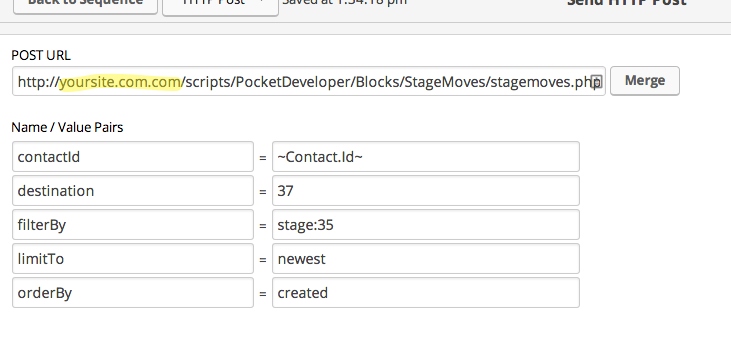
  • Any Opportunity To Any Stage – Quickstart Guide

    [wc_accordion collapse=”1″ leaveopen=”0″ layout=”box”]

    [wc_accordion_section title=”Installing the Plug-In”]

    Installing the Plug-In

    Note: You should have installed your Infusionsoft Pocket Developer plug-in using the instructions provided, if for any reason you have not installed your Pocket Developer plug-in click here to learn how.

    [/wc_accordion_section]

    [wc_accordion_section title=”Configuring the HTTP Post Snippet”]

    Configuring the HTTP Post Snippet

    any-opportunity-any-stage

    [wc_box color=”inverse” text_align=”left”]
    WarningNOTE: Everything in an HTTP POST is case sensitive. That includes the URL, the parameters on the left and the field names on the right. If caPitaLizaTion is wrong, your post will not work.
    [/wc_box]

    URL:

    The URL, on your server, where the Pocket Developer script is stored. For example:
    http://yourdomain.com/scripts/PocketDeveloper/Blocks/TagsFly/tagsfly.php


    Required Name/Value Pairs:

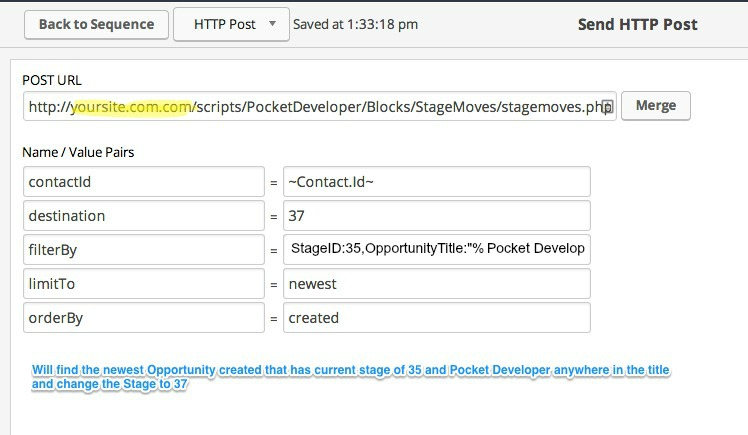
    contactId

    • This is the contact Id for the contact record where fields will be retrieved (if any) and for whom opportunity records will be queried

    destination

    • The destination StageID to move all opportunities found for the specified contact record, which may or may not be limited by optional filtering criteria.
    • All opportunities found will be set to this specified destination StageID

    OptionalName/Value Pairs:
    filterBy

    • Filter by any field in an Opportunity, as follows:
      • For a number or ID field -> StageID:32
      • For a text field -> OpportunityTitle:”My Text” or OpportunityTitle:”My Text%” or OpportunityTitle:”%My Text%”
      • For a date field -> NextActionDate:”200409%”
    • Filters can be combined to further narrow down a contact’s opportunities.

    Examples:

    1. UserID:3
    Will only return opportunities currently at stage #3

    2. StageID:3,AffiliateID:4
    Will only return opportunities at stage #3 that was referred by affiliate #4

    3. UserID:4,UserID:5
    Will return opportunities at any stage that originated from affiliate #4 and has been assigned to owner #5

    4. UserID:3,UserID:4,UserID:5
    Will return opportunities at stage #3 that originated from affiliate #4 and has been assigned to owner #5

    5. UserID:3,UserID:4,UserID:5,OpportunityTitle:”%Pocket Developer%”
    Will return opportunities at stage #3 that originated from affiliate #4, assigned to owner #5 that has “Pocket Developer in the title

    limitTo

    • Opportunity filterBy results can be limited by using the values of ‘oldest’/’first’ or ‘newest’/’last’ to limit the result to a single opportunity.

    orderBy

    • Used in combination with ‘limitTo,’ this parameter allows you to order the resulting opportunity lookup by the values ‘created’ or ‘updated’ (default ordering is by last updated timestamp)Pocket_Developer_2

    [/wc_accordion_section]

    [wc_accordion_section title=”Demo Video”]

    Demo Video

    [/wc_accordion_section]

    [wc_accordion_section title=”Pro Tips”]

    Pro Tips

    [/wc_accordion_section]

    [wc_accordion_section title=”Frequently Asked Question”]

    Frequently Asked Questions

    [/wc_accordion_section]
    [/wc_accordion]

  • How To Solve 101 Everyday Infusionsoft Challenges – Pocket Developer

    How to download and install the free Custom Delay Timer block is in the video beginning about 19:00.

    Here is a link to how to set that up in Campaign Builder (also covered in video):
    https://tag-2025.local/blog-post/infusionsoft-delay-timer-less-than-15-minutes/

    And don’t forget about the one year of Zapier I am giving away … that is explained at about 11 minutes in.

    One of the things I have realized is that Pocket Developer can do so many things … almost anything, really. And that is what makes it so difficult to explain.

    So, I came up with this idea:


    Do you have something you want to do in Infusionsoft but don’t know how to do it? Anything… anything at all??

    Schedule 30 minutes with me. I will tell you how you can do it with Pocket Developer.

    Here is the link to schedule a call with me. No strings attached. Worst case scenario you will learn something …