Author: The AI Team

  • How to set up an HTTP Post in Infusionsoft

    HTTP Posts are a way of passing data from one server to another. In order to make our Pocket Developer plugins work, you will need to send data to our server, so that we can tell Infusionsoft what you want done with it.

    In Infusionsoft, setting up an HTTP Post is fairly simple. Just go to Campaign Builder, drag out a new sequence or open an existing sequence, and drag the Send HTTP Post snippet from the Process section in the left sidebar.

    https://screencast.com/t/O0xUxeQlMh

    To configure your HTTP Post, you will need to add a POST URL and add some name/value pairs, also known as parameters.

    The POST URL will be the URL of the server where you want to send the data. It may specify a particular directory or script where the code that will catch the data you are sending and interpret it. Any service that asks you to send data via HTTP Post will provide you with the URL where they want you to send the data. For instance, to send data to Pocket Developer’s AnyText plugin, you will use this URL:

    http://pocketdeveloper.net/AnyText/

    When you create the HTTP Post in Infusionsoft, the first parameter will be filled in by default, with “contactId” as the name, and the merge field for contact Id as the value of the field. You can have as many name/value pairs as you want. If you hover to the right of a parameter, plus and minus buttons will appear; use the plus button to add a parameter, and minus to delete them. For example, if you also want to send the contact’s first name, you might add a parameter with the name “fname” and the value “~Contact.FirstName~”.

    The service you are sending the data to will typically provide the names you should use. For instance, to use PDev plugins, in addition to contact Id you must provide your PDev token, so that we know which Infusionsoft application is making the request. This is done by adding a parameter with the name “App” and the value of your PDev token to every HTTP Post to PDev. Our PDev documentation will tell you what other parameters (name/value pairs) to use with each plugin, as well as telling you which ones are required (must be present for the plugin to function) or optional (can be added for convenience and to unlock special features).

  • Infusionsoft OAuth Flow

    OAuth 2 has recently become the web standard for authenticating APIs for use in custom applications.  As a user you have probably seen it any time you try to install an application that works with Facebook, Github or any number of others.  Infusionsoft has adopted the OAuth 2 standard and is slowly pushing us to use it in lieu of the more simple API key authentication. So what is OAuth 2 and how does it work?  And more importantly, how do you set up an Infusionsoft OAuth API connection?

    What is OAuth 2?

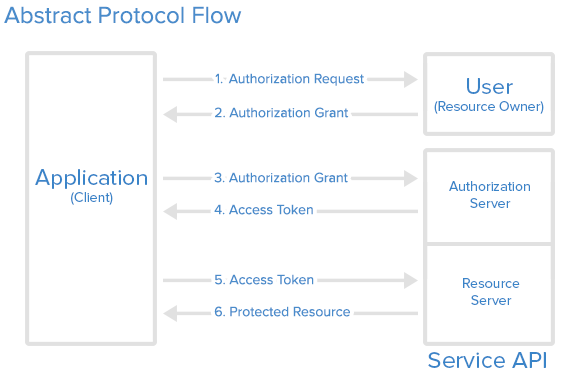
    OAuth 2 is a standard protocol for authentication which can be set up by a web service in order to provide access to their data.  The protocol essentially defines the following 3 types of players or roles which will interact together.

    1. Resource Owner – The resource owner is essentially going to be the end user who will be the one to authenticate the application. For Infusionsoft, this translates to a User in Infusionsoft.  The authentication will ultimately be done by the User or by someone on behalf of the User.
    2. Client – The client is going to be the application that is set up to connect with Infusionsoft in a more generic sense.  The resource owner will essentially be authenticating the client to be able to talk with their Infusionsoft installation.  The client can also have a server which securely stores the resource owner’s access tokens for continual use of the API without the need for re-authentication.
    3. Resource Server/Authentication Server – The resource server is where the user account information is stored, while the authentication server is where the access details are stored in order to for the client to connect with the resource server.  Essentially, Infusionsoft itelf is the resource server, and the OAuth API is the Authentication Server.  From the developers point of view, these are both the same.

    How Does It Work?

    The OAuth 2 protocol has standard flow, which follows the procedure below:

    Abstract Protocol Flow

    1. Developer registers their application (client) with the resource server.  This is usually done with a client_id and client_secret.  Once the developer sets this up, they will use those details to communicate with the resource server in order to set up an authentication process for the user to follow.
    2. The application first will send the user to an authorization request using its client_id and/or client_secret. 
    3. The user will be asked to login to their resource (Infusionsoft) in order to grant permission for the application to use their resource data.  This only needs to be done once as the application can then store the token for subsequent requests.
    4. When the user grants permission for the application to use their resource, a grant code is sent to a url that the application would have specified when sending in the client_id and/or client_secret.
    5. When the application (via the url from above) is sent a grant code, that code is then used to generate an access_token.  The application does this by making a request to the authentication server with the client_id, client_secret, and grant code.  Assuming that those credentials are valid, the authentication server will then return an access_token that will be used to connect directly with the resource server.
    6. When the application has received the access_token, it will store it in its database (encrypted) for later use.  Usually an access_token will only be valid for a certain period of time and therefore sometimes comes with a refresh_token which can be used to get a new access_token.  The refresh_token should be stored along with the access_token.
    7. The application is now free to connect with the resource server and do whatever is intended. Every call made to the resource server will require the access token.

    How do I set up an Infusionsoft OAuth API connection

    So now that you understand how OAuth 2 works in general, (simple right?) what is the procedure for setting it up for Infusionsoft?

    Essentially an Infusionsoft OAuth 2 connection can be set up in any language, but they have provided a wrapper for use with PHP to simplify the process as well as make xml-rpc calls more simple and readable. You can install the PHP SDK from composer or download it directly from github at https://github.com/infusionsoft/infusionsoft-php.  The link also provides more documentation on how to use the SDK.

    Essentially there are 3 steps in Authenticating the application.

    1. Send the user to Infusionsoft to Authorize the application.
      require_once 'vendor/autoload.php';
      $infusionsoft = new \Infusionsoft\Infusionsoft(array( 
          'clientId' => 'XXXXXXXXXXXXXXXXXXXXXXXX', 
          'clientSecret' => 'XXXXXXXXXX', 
          'redirectUri' => 'http://myapplicationurl.com/myapplicationauthorizationscript.php'
      )); 
      echo 'Click here to authorize;';
    2. Accept the grant back from Infusionsoft after the user has logged in an granted permission.
      require_once 'vendor/autoload.php';
      
      $infusionsoft = new \Infusionsoft\Infusionsoft(array(
          'clientId'     => 'XXXXXXXXXXXXXXXXXXXXXXXX',
          'clientSecret' => 'XXXXXXXXXX'
      ));
      
      /** 
       * This will send the grant code to Infusionsoft and return an access token
       * expiration, and refresh token that you can store in your database.  It will also
       * set the token for you so that you are ready to make calls to the API.
       */
      $infusionsoft->requestAccessToken($_GET['code']);
      
      // you should encrypt this array after you serialize it for security.
      $token_array = serialize($infusionsoft->getToken());
      
      // store $token_array somewhere and/or begin making API calls
      
      
    3. Get the token from the database and set it for making calls to the API
      require_once 'vendor/autoload.php';
      
      // Decrypt and unserialize the token object from your database
      $token_array = some_method_for_retrieving_and_unserializing_token();
      
      // Set up your Infusionsoft object.
      $infusionsoft = new \Infusionsoft\Infusionsoft(array(
          'clientId'     => 'XXXXXXXXXXXXXXXXXXXXXXXX',
          'clientSecret' => 'XXXXXXXXXX'
      ));
      
      // Set the token
      $infusionsoft->setToken($token_array);
      
      // Now you are ready to make calls to the API


    And that’s it!  Now you are ready to start building an application that connects to Infusionsoft via the API.

  • Merge Infusionsoft data into Google Doc or PDF

    You can merge data from Infusionsoft into a Google Doc — or PDF — with no code at all. This recipe requires an HTTP Post in an Infusionsoft campaign, a Google Form, a Google Spreadsheet, a Google Doc, and the autoCrat add-on for Google Apps.

    1. Prepare the Google Doc merge template. Insert tags formatted as a field name inside double carrots, e.g. “Dear <<firstname>>:”. Use a single word for your field name, but it can be whatever you want. (Click here to see an example.)
    2. Set up a Google Form with “questions” for all the data you want to merge. In the form settings under the gear icon, deselect any sign in restrictions (so you can submit data via HTTP Post). (Click here to see an example.)
    3. On the Google Form under Responses, click the “more” dots and choose “Select response destination” to set a Google Spreadsheet to hold the data.


    4. In the Google Spreadsheet, install the add-on autoCrat.
    googlemerge_autcratinstall
    5. In autoCrat, create a new job to merge the data from the spreadsheet into the Google Doc. In step 9, be sure to select “Yes” for the option “Run on form trigger”. (If you want to create a PDF instead of a Google Doc, select the correct type in step 4.)

    (Here comes the most technical part. In order to create the HTTP Post, you need the form’s POST URL and you need the html names of the fields you want to fill out, which is different than the names you gave them. I recommend copying this information to a text file for reference as you will need to paste it into Infusionsoft.)

    6. View the Google Form you created (as if you are going to fill it out) in Chrome.
    7. Hover over the blank space on the form just above the title and right click on the from and choose Inspect to open the page source code. A few lines up you should see this: form action=" followed by a URL. Copy the URL to a text file.
    8. Hover over the first field you will want to fill out and right click to Inspect again. In the source code scroll down a few lines until you see something that looks like this: input type="hidden" name="entry.1462991265" Copy the name (in this case entry.1462991265) to the text file and note what it identifies.
    9. Repeat step 8 for each field. Keep track of which entry name belongs to which information.

    Ok, hard part done. Now you should have a text file with a URL and a list of html field names and what they stand for.

    10. In a campaign in Infusionsoft (at the point where you want the document to be created), create an HTTP Post.
    11. Copy the URL from your form into the POST URL field in the HTTP Post.
    12. Add a name/value pair with the name “submit” and the value “Submit”.
    13. Add name/value pairs for each of the data fields you want to send to the Google Doc. The name will be the entry name you copied in step 8. The value will be the Infusionsoft merge field, e.g. ~Contact.FirstName~.
    14. Set your HTTP Post to Ready and publish the campaign.
    Screenshot 2016-08-29 17.01.03

    That’s it! When the HTTP Post fires, it will send the data from the values into the form fields you designated as names. That data will be saved as a form entry and will be sent to the spreadsheet. AutoCrat will merge the data from the speadsheet into the Google doc and, if you selected it, create a PDF on your Google Drive.

  • Update Opportunity Records with a Web Form

    flashlight_photo-1460804198264-011ca89eaa43We love opportunity records, because a single contact can have more than one, and because you get another 100 custom fields for each one. We like use them for a lot of things that are not the typical manually-handled sales pipeline that Infusionsoft teaches, and we’ve developed some interesting techniques for working with them.

    One of our Pocket Developer customers recently asked about how to have assistants use an Infusionsoft web form to update opportunity records. For an added wrinkle, a given contact might have multiple opportunity records active at the same time.

    There are two problems with this scenario. First, Infusionsoft web forms can only input data to contact records, not opportunities. Second, since there are multiple opportunities, we need to be able to designate the specific opportunity to add data to. Fortunately both of these problems can be handled with Pocket Developer, with a little finessing. It requires a teeny, tiny bit of html code and an understanding of URL query strings… which I am going to explain thoroughly below, so you’ll be up and running in no time at all.

    1) Create a campaign with whatever goal trigger you want to start with.

    2) Add a sequence and add two processes to the sequence:
    a) Create an Opportunity — set the default options (title, stage, assigned user, etc.) to whatever you wish them to be.
    b) An HTTP Post to Email Anyone. Set the “to” parameter to the email of the person you will want to fill out the form (or a field containing that information), and the templateId to the id number of the email template that will be sent to them.

    3) Add a web form goal. This web form must have a field for email and a field to temporarily store the opportunity id. The opportunity id storage field can be a custom field, but since it is for temporary storage you may also choose to use a standard field that you don’t typically use. We often use the Assistant Name field for this purpose. The email and opportunity id fields can be hidden if you like, since we are going to automatically populate them with the link. You should of course also have temporary storage fields for any other information you want the user to add.

    4) Copy the hosted link for the web form.

    5) Go to the email template you entered in step 2a. Insert an html snippet in the body of the email. (This is where the teeny, tiny bit of code comes in.) Paste in the following:

    <a href="url">Link Text</a>

    This is how a link is created. <a href=”url”> says to add a link that goes to a url (we’ll add the actual url in the next step). The </a> says to stop linking. The “Link Text” in between is the text that will be made clickable by the other two parts. That’s it… all the code you need to know. (If you want to know more about html links, click here.)

    6) Replace what is between the quotation marks with the hosted web form link you copied in step 4.

    7) In addition to the url, we need to send a couple of pieces of data to pre-fill the form — the email address and the opportunity id. (This is where you find out about query strings. For a more thorough explanation, click here.) In order to separate this information from the url, we’re going to add question mark. Then we’re going to send in pairs of information in the format “name=value” with each pair separated by an ampersand. For example, if we needed to tell it to set the email address to “hello@theapiguys.com” and the assistant name (which we are using to store the opportunity id) to “1234”, we would add the following to the url:

    ?Email=hello@theapiguys.com&AssistantName=1234

    Because of the way the hosted web form is coded, it will know to put the Email value into the Email field and the AssistantName value in the AssistantName field. (Note that this technique will also work if you use the Infusionsoft javascript snippet to embed your web form on your website, though in that case you will have a different url.)

    But we don’t always want to send the same information. We want these values to be dynamic and send the email for the relevant contact and the opportunity id of the opportunity we just created. In order to do this, we will use merge fields. Fortunately since we’re using Email Anyone, we can even directly merge in data from opportunity records, like so:

    ?Email=~Contact.Email~&AssistantName=~Opportunity.Id~

    When the email is generated, Infusionsoft will see this html snippet and perform the merges like it does in any other place in the email. It will transform ~Contact.Email~ into the contact’s id number and it will transform ~Opportunity.Id~ into the id number of the most recently updated (which in this case has to be the one we just created).

    Note that this method does have a few drawbacks. Because you are using an html snippet for the link, it will not behave like a regular Infusionsoft link. It won’t be tracked, and there’s no way to add actions like a tag based on the link click. It also cannot complete a link click goal. So this is probably NOT a method you want to use for marketing-type emails. But for administrative purposes, this method can be very useful.

    Now you’ve got your web form ready and your email template set up. When the administrator gets the email, they will click on the link and be directed to the webform, which will pre-populate with the values you’ve sent in the query string for those field, including the opportunity id. But they’re still inputting data to the contact record. It’s time to make the real magic happen… getting that info to the opportunity record.

    8) Add a sequence with an HTTP Post to AnyText to copy the stored data from the contact record to the opportunity record.

    Set the textToSave fields to the fields from your contact record where the data you want to copy to the opportunity is stored.

    In the saveTo fields you will use reference notation to merge in the opportunity id storage field, thereby designating precisely which opportunity to write to. Reference notation looks like this:

    Table(ID).FieldName

    or more specifically in this case

    Opportunity(~Contact.AssistantName~)._OtherInfo

    The Contact.AssistantName field is where the opportunity id is stored, having been sent in by the web form which was pre-filled by the html link you created. The reference notation will go to the opportunity table, look for the entry in that table that matches what it finds in the Contact.AssistantName field, and (since this is a saveTo value) will write the matching textToSave information to the OtherInfo field for that entry.

    9) (Optional) If you like to keep your data clean, you can add a short timer (a couple minutes to make sure the http post has completed copying the data) and then add another HTTP Post to AnyText to set the copied contact fields back to blank. That way, you don’t get confused by potentially old date sitting in those fields. We’ve even used this technique to prevent users from accidentally filling out the form too quickly in succession by adding a warning if the AssitstatName field is still occupied. This is especially useful when users might be handling multiple opportunities at once.

    Now your system is set up so that you can update opportunity records from a web form.

  • Get Referral Partner Info

    groupreflect_photo-1450609283058-0ec52fa7eac4A client recently asked if they could get the name of the contact’s referral partner to a custom field on the contact’s record. That is, if “John Smith” had been attributed as the referral partner responsible for brining in “Jane Parker” as a lead, they wanted “John Smith” to appear in a custom text field called “Referredby”. That field would then be synchronized to a different system being used for reporting and accounting.

    Unfortunately the way Infusionsoft is structured, it’s not easy to get from the contact record to the referral partner’s record and vice versa. However, with Pocket Developer’s Any Text, Anywhere plugin and Advanced Merge Notation, we were able to do it with one HTTP Post. Here’s what we did.

    First, we are going to go the the Referral table and retrieve the Affiliate Id we find there that is associated with the current contact’s Contact Id by using a “prefetch” (which we number 0, because order matters and we always start with 0):

    prefetch[0][affid] = Referral.AffiliateId.FilterBy(ContactId:~Contact.Id~)

    Here we are making “affid” the name for “the Affiliate Id you find on the Referral table when you filter it to look for the Contact Id that matches the current contact’s id”. (You could use any word-like string you want as long as you use the same name in the next value.)

    Next, we are going to go to the Affilate table and retrieve the Contact Id we find there that is associated with the Affiliate Id we just prefetched. We’ll call it “conid”.

    prefetch[1][conid] = Affiliate({affid}).ContactId

    We only want to find one record, so right after the table name we add parentheses to contain the specific record we are looking for. We prefetched that affiliate number in the previous step, so we use the name we gave it — “affid” — inside brackets and put it inside the parentheses.

    Now we have the contact id of the referral partner saved with the name “conid”. We want to get the first and last name of that contact id, so we want to go to the Contact table and find that specific record. Again, we’re going to use parentheses after the table name, with the specific number we are looking for inside those parentheses, to get the information we want:

    prefetch[2][first] = Contact({conid}).FirstName
    prefetch[3][last] = Contact({conid}).LastName

    We finally have the first and last name, called “first” and “last”. Now we just have to tell AnyText what it should cope and where it should copy it to:

    textToSave[0] = {first} {last}
    saveTo[0] = Contact._Referredby

    In this case, we’re saving the first and last name we prefetched into the Referredby custom field.

    If we wanted to get additional information from the affiliate’s record, we would do additional prefetches (incrementing the number and naming each uniquely). And if we wanted to save to additional fields, we would add textToSave–saveTo pairings (incrementing the paired numbers).

    And that’s it!

    HTTPPost_ReferralPartnerInfo

  • Prefetch

    [wc_accordion collapse=”1″ leaveopen=”0″ layout=”box”]

    [wc_accordion_section title=”What It Does”]

    What It Does

    Prefetch is a feature built into our Advanced Merge Field Notation. Advanced Merge Field Notation is the way you tell Pocket Developer what field you want to work with. Prefetch allows you to burrow deep down into the tables to use a piece of data that is not easily retrieved using just the contact ID.

    For those of you who are programmers, Prefetch is Pocket Developer’s version of a join. For those of you who aren’t, ignore that. Doesn’t matter.

    Prefetch also allows you to save multiple pieces of data, coming from different places, into a single merge field. See the examples and demo video that follow to get a better idea of the power of prefetch.
    [/wc_accordion_section]

    [wc_accordion_section title=”Where I Can I Use It?”]

    Where I Can I Use It?

    Prefetch is available anywhere Advanced Merge Field Notation is. All “Core” Pocket Developer plug-ins have Advanced Merge Field Notation and therefore can use Prefetch. Core plug-ins are the yellow ones in the Pocket Developer Store.

    Core plug-ins include (at last count):

    Check the Pocket Developer Plug-In Store for the most updated list and to see all 30+ Pocket Developer plug-ins.
    [/wc_accordion_section]

    [wc_accordion_section title=”How To Use It”]

    How To Use It

    To use Prefetch, include it as a parameter in an HTTP POST snippet that calls a core Pocket Developer plug-in.

    prefetch example

    Prefetch Notation

    prefetch[label]

    • Each prefetch “parameter” will act as an
      independent lookup and store the result of said lookup in the specified label for the prefetch
    • Prefetch label can be anything. You can label a piece of data “purple” if you want
    • You can do more than one prefetch in a single HTTP POST snippet
    • Prefetch allows for cascading usage of lookup results. That is to say, the result of prefetch action #1 can be used within the lookup details of prefetch #2, #3, as well as the basic parameters of the plug-in.


    Prefetch Example

    To demonstrate some of the principles, consider the following example. Let’s assume that we would
    like to get the quantity of a line item within an order, and then include it in the textToSave
    parameter of the Any Text, Anywhere plug-in.

    To achieve this result, we would define the following key/value pairs within an HTTP POST action within campaign builder:

    contactId = ~Contact.Id~
    prefetch[order_id] = Order.Id.Newest
    prefetch[item_id] = OrderItem.Id.FilterBy(OrderId:{order_id}, ItemName:"Plan 1")
    prefetch[item_qty] = OrderItem({item_id}).Qty
    prefetch[notes] = Contact.ContactNotes
    textToSave = User has ordered {item_qty} of item #{item_id} in order #{order_id}nn{notes}
    saveTo = Contact.ContactNotes

    This specific example would have the effect of prepending the “User has ordered …” line to
    the contact’s ContactNote field.

    • prefetch[order_id] gets the ID of the newest order and stores it with a label of order_id
    • prefetch[item_id] uses the previously stored order_id to get the ID of the item on that order called Plan 1 and stores it with a label of item_id
    • prefetch[item_qty] uses the previously stored item_id to get the quantity ordered of that item and stores it with a label of item_qty
    • prefetch[notes] stores the contents of the big Contact Notes tab in the contact record
    • textToSave prepends the string “User has ordered {item_qty} of item #{item_id} in order #{order_id}”. The codes “/n” create line breaks. Then the previous contents of the field are appended using {notes}.

    [/wc_accordion_section]

    [wc_accordion_section title=”Demo Video”]

    Demo Video


    [/wc_accordion_section]

    [wc_accordion_section title=”Frequently Asked Questions”]

    Frequently Asked Questions

    Q. Where do I find all of the table and field names?

    A.Infusionsoft has a complete reference for all the tables and fields you can use with Pocket Developer’s Advanced Merge Field Notation. Although the table names, in particular, may not be immediately obvious, the descriptions will help you find what information is stored in each table.
    [/wc_accordion_section]
    [/wc_accordion]

  • Advanced Merge Field Notation

    What It Does

    Advanced Merge Field Notation is the way you tell Pocket Developer what data you want to work with. You can specify any record or records in the Infusionsoft database just like you were running a query. You are not just limited to the contact table or the merge fields given to you in the Merge Field button dropdown. You can filter and direct the data in order to drill down through multiple tables, to sort query results, to add comparisons and conditions, and to perform certain actions like counting and summing.

    • Access company, tasks, appointments, tags, opportunities, orders, invoices, invoices, products, payments, referrals, affiliates and any other Infusionsoft table accessible to the API (see the API-enabled table schema from Infusionsoft).
    • Update fields; get information from fields; merge fields; count fields; compare field;, average fields; return the min, the max, the newest, the oldest, the first updated, or the last updated value; combine fields; filter results using wildcards and tags; and much more
    • Display results in an email (using EmailAnyone), use them to trigger an action (using Universal Delay Timer) or merge them into an HTTP POST for an external application (e.g. document signing, using HTTP Request)
    • Build complex datasets that require you to drill down into the tables (e.g. finding specific credit card charges)
    • Merge information from or update a contact other than the one going through the campaign (e.g. the record of the referrer or opportunity owner)

    Advanced Merge Field Notation is available in all “Core” Pocket Developer plug-ins.

    Notation Basics

    Infusionsoft’s merge field notation specifies a table (see the API-enabled table schema from Infusionsoft) and a field, separated by a period:

    ~TableName.FieldName~
    Examples:
    ~Contact.FirstName~
    ~Company.StreetAddress1~
    ~Opportunity.OpportunityTitle~ (Note that the Infusionsoft table name is “Lead”, but Pocket Developer also understands “Opportunity” for clarity.)

    Note that custom fields are always preceded by an underscore:

    ~TableName._CustomFieldName~
    Examples:
    ~Contact._DateOfFirstPurchase~
    ~Opportunity._PurchaseOrderNumber~

    Reference Notation

    Use reference notation to specify a particular record id number in parentheses after the table name:

    ~TableName(RecordID).FieldName~

    With a stable reference number, you can use a single “dummy” record to store data or application-wide calculations you want to reuse. You can also use Prefetch to query for a specific record, useful when you need to drill down through tables to get specific information.

    Example:
    ~Opportunity(15).OpportunityTitle~
    Gets the Opportunity Title of the Opportunity with the ID of 15.

    Query Notation

    Additional filters and directives can be added after the table and field, separated by a period, using the following basic syntax:

    TableName.FieldName.[FilterBy(...)][.OrderBy(...)][.Qualifier1[.QualifierN[...]]]

    Examples:
    Opportunity.Id.FilterBy(OpportunityTitle:"Steve %")
    Finds the Id of the newest (newest is default) Opportunity where Steve is the first word in the Opportunity Title. (The % is a wild card.)

    Qualifiers

    The table and field names can be further modified by “qualifiers.” Qualifiers can be either “filters” or “directives.”Filters will generally be used to pare down the results of an advanced merge field notation query, so as to more easily return or set one record in particular.Directives will generally be used to request an alternative result or take some action to further modify the resulting set of data.

    • Qualifiers may be chained, as in (…).Newest.Unpaid
    • The ‘Newest’ qualifier is assumed if no Newest/Oldest/Last/First is specified
    • Qualifiers are optional
    • Results will be ordered by DateCreated (if available) by default, unless explicitly overwritten with the OrderBy directive

    List of Valid Qualifiers

    Filters

    FilterBy

    • A list of key/value pairs with a field name as the key
      • Values that contain commas, periods, and/or colons must be wrapped in quotation marks (e.g. “This is my name: Steve,” “Hi, how are you,” or “99.3.”)
      • Integer values may be used without surrounding quotation marks
      • Text values should always be surrounded with quotation marks
      • Quotation marks and tilde characters should be escaped when used within the FilterBy directive (e.g. “He said “Hello” first” or “Use ~ toe merge”)
      • A percentage character (%) can be used as a wildcard

    Examples:

    Return the description field of the newest appointment for that contact:~ContactAction.ActionDescription.FilterBy(IsAppointment:1)~

    Return the description field of the newest task or note for that contact where Action Type is “Call:”~ContactAction.ActionDescription.FilterBy(ActionType:"Call")~

    Return the description field of the newest appointment for that contact where “Consulting Call” is somewhere in the Description:~ContactAction.ActionDescription.FilterBy(IsAppointment:1, ActionDescription:"%Consulting Call%")~

    Newest (or Last)

    • Selects desired data from the newest record out of the query result
    • Newest is the default behavior when more than one record is returned and Newest/Oldest/Last/First is not specified
    • “Newest” is, by default, related to date of creation. Use “OrderBy” to specify alternate sorting.

    Example:

    Refer to the Id of the newest (most recent) order:Order.Id.Newest

    Oldest (or First)

    • Selects desired data from the oldest record out of the query result
    • “Oldest” is, by default, related to date of creation. Use “OrderBy” to specify alternate sorting.

    Example:

    Refer to the Id of the oldest (first) invoice:Invoice.Id.Oldest

    Paid (only supported for queries on Invoice table)

    • Reduce or filter the query results to those invoices which are currently marked “PAID”

    Example:

    Refer to the Id of the newest (most recent) paid invoice:Invoice.Id.Paid

    Unpaid (only supported for queries on Invoice table)

    • Reduce or filter the query results to those invoices which are currently marked “UNPAID”

    Example:

    Refer to the ID of the newest (most recent) unpaid invoice:
     
    Invoice.Id.Unpaid

    IsEmpty

    • Only returns fields that have no value
    • Generally used when you want to update a field only when it is empty, although it does have other uses

    Example:

    Returns the Order Title of the newest (most recent) Order where OrderTitle is blank
     
    Order.OrderTitle.IsEmpty

    IsNotEmpty

    • Only returns fields that have a value. Empty fields are ignored.

    Example:

    Returns the Order Title of the newest (most recent) Order where OrderTitle is not blank
     
    Order.OrderTitle.IsNotEmpty

    GreaterThan

    • Keep only those query results which have a numeric value greater than the value specified in the filter parameters.

    Example:

    Returns the Order ID of the newest (most recent) Order where OrderID is greater than 300
     
    Order.Id.GreaterThan(300)

    GreaterThanOrEqualTo

    • Keep only those query results which have a numeric value greater than or equal to the value specified in the filter parameters.

    Example:

    Returns the Order ID of the newest (most recent) Order where OrderID is greater than or equal to 300
     
    Order.Id.GreaterThanOrEqualTo(300)

    LessThan

    • Keep only those query results which have a numeric value less than the value specified in the filter parameters.

    Example:

    Returns the Order ID of the newest (most recent) Order where OrderID is less than 300
     
    Order.Id.LessThan(300)

    LessThanOrEqualTo

    • Keep only those query results which have a numeric value less than or equal to the value specified in the filter parameters.

    Example:

    Returns the Order ID of the newest (most recent) Order where OrderID is less than or equal to 300
     
    Order.Id.LessThanOrEqualTo(300)

    Before

    • Keep only those query results that have a date before the value specified in the filter parameters. Date equivalent of LessThan.

    Example:

    Returns the Due Date of the newest (most recent) Order where Due Date is before 12/31/2014
     
    Order.DueDate.Before("12/31/2014")

    After

    • Keep only those query results that have a date afterthe value specified in the filter parameters. Date equivalent of GreaterThan.

    Example:

    Returns the Due Date of the newest (most recent) Order where Due Date is after 12/31/2013
     
    Order.DueDate.After("12/31/2013")

    HasAnyTag (only supported for queries on Contact table)

    • Keep only those query results that have been tagged with any of the specified tag IDs.

    Example:

    Returns a comma separated string of Emails of those contacts with either 123 or 456 in their tags
     
    Contact.Email.HasAnyTag(123,456).Combine(",")

    HasAllTags (only supported for queries on Contact table)

    • Keep only those query results that have been tagged with all of the specified tag IDs.

    Example:

    Returns a comma separated string of Emails of those contacts with both 123 and 456 in their tags
     
    Contact.Email.HasAllTags(123,456).Combine(",")

    Directives

    OrderBy

    • Allows you to sort the results of a query by the specified field
      • OrderBy sorts all resulting matches in ascending order (lowest to highest, oldest to newest)
      • Fields specified in the OrderBy directive are assumed to be date fields
      • To sort a number or text, the notation should be append “:Text” or “:Number” to the field name
    • The field name can be any field within the table

    Examples:

    Return the title of the opportunity, with the newest Estimated Close Date:
     
    ~Opportunity.OpportunityTitle.OrderBy(EstimatedCloseDate)~
     
    Return the title of the opportunity, with the newest custom field Last Stage Move Date, where the Opportunity Stage is 56 (e.g. Awaiting Contract)~Opportunity.OpportunityTitle.FilterBy(StageID:56).OrderBy(_LastStageMove)~Return the title of the first opportunity where the Opportunity Stage is 56 (e.g. Awaiting Contract) when sorted alphabetically by Leadsource~Opportunity.OpportunityTitle.FilterBy(StageID:56).OrderBy(Leadsource:Text)~Return the title of the first opportunity where the Opportunity Stage is 56 (e.g. Awaiting Contract) when sorted numerically (lowest to highest) by Stage ID~Opportunity.OpportunityTitle.FilterBy(StageID:56).OrderBy(StageID:Number)~

    Max

    • Returns the maximum of all returned numeric values in the specified field

    Example:

    Return the highest Order ID:
     
    Order.Id.Max

    Min

    • Returns the minimum of all returned numeric values in the specified field

    Example:

    Return the lowest Order ID:
     
    Order.Id.Min

    Count

    • Returns the number of results yielded from an Advanced Merge Field query

    Example:

    Tells you how many Opportunities exist for that particular contact:
     
    Opportunity.Id.Count

    Sum

    • Returns the sum total of all values returned by the Advanced Merge Field query

    Example:

    Gives you the total quantity of all items ordered on the Order with an ID of 15:
     
    OrderItem.Qty.FilterBy(OrderId:15).Sum

    Global

    • Runs “global” queries for all contacts, not just the contact associated with the action or sequence that invoked the call to the plug-in.  This is different than the ‘All’ directive which will return all the results found after the query has been performed.  This directive applies to the query itself, meaning that all contacts will be queried, rather than only the contact in the sequence/action.

    Example:

    Gives you the total number of contacts with postal codes that begin with 902:
     
    Contact.Id.Global.FilterBy(PostalCode:"902%").Count

    Combine

    • Combines all the results of a given Advanced Merge Field query into one string, and applies a “glue” in between each result set value.

    Example:

    Gives you a simple, comma delimited list of all orders for a contact that are greater than order ID 300:
     
    Order.Id.GreaterThan(300).Combine(", ")
     
    (Example result might be: 305, 307, 309)

    All

    • Similar to Combine except it takes no “glue” parameter
    • Used to get or update all records that meet the query criteria
    • Common use case would be to set all fields that meet query criteria to blank
    • If “All” is used on a get or retrieval request, the resulting set will be a space delimited string of all result data.
    • NOTE:  In order to use the All directive with the Contact table, you must set the Global directive as well in order to open the query up to contacts other than the one in the sequence.

    Example:

    Gives you a space delimited string of all values in the custom field MyField for that contact:
     
    Opportunity._MyField.All

    Date (pseudo-table)

    The following Advanced Merge Fields will be replaced when supplied to Pocket Developer:

    • Date.Current (Month D, YYYY)
    • Date.DayOfWeek (Day)
    • Date.DayOfMonth (D)
    • Date.Month (Month)
    • Date.MonthOfYear (M)
    • Date.Year (YYYY)
    • Date.Timestamp (YYYYMMDD H:M:S TZ)

    Conditional Notation

    We now have support for (>, <, >=, =>, <=, =<, =, !=, <>).  These are the same as is supported in UDT.
    Examples:
    {if} a {then} b {else} c    — if there is a value for a (i.e., the merge field has a value), then b will be used, otherwise c will be used
    {if} a > b {then} c {else} d
    {if} a <= b {then} c {elseif} d {then} e {else} f
    {if} a <> b {then} c {else} d

    More Examples

    Opportunity.ContactID.FilterBy(StageID:59)

    Opportunity._CourseName.FilterBy(OpportunityTitle:”Send Client a “Project” Proposal”, AffiliateId:15)

    Invoice.InvoiceTotal.FilterBy(PayStatus:1, RefundStatus:0).Oldest

    Contact._Number.GreaterThan(0).LessThan(5)

    Pro Tips

    You can use prefetch to burrow deep down into the tables for a specific piece of information.

    Frequently Asked Questions

    Q. Where do I find all of the table and field names?

    A. Infusionsoft has a complete reference for all the tables and fields you can use with Pocket Developer’s Advanced Merge Field Notation. Although the table names, in particular, may not be immediately obvious, the descriptions will help you find what information is stored in each table.

    To get full use from Pocket Developer, familiarizing yourself with all the information available is very helpful.

  • FieldMath for Sequential Numbering

    Infusionsoft keeps ID numbers for everything — contacts, orders, opportunities, etc. — but they aren’t always what you want. For one thing they frequently go by twos, and for another they count all items of that type. So what if you want your own sequential numbering system? Use Field Math.

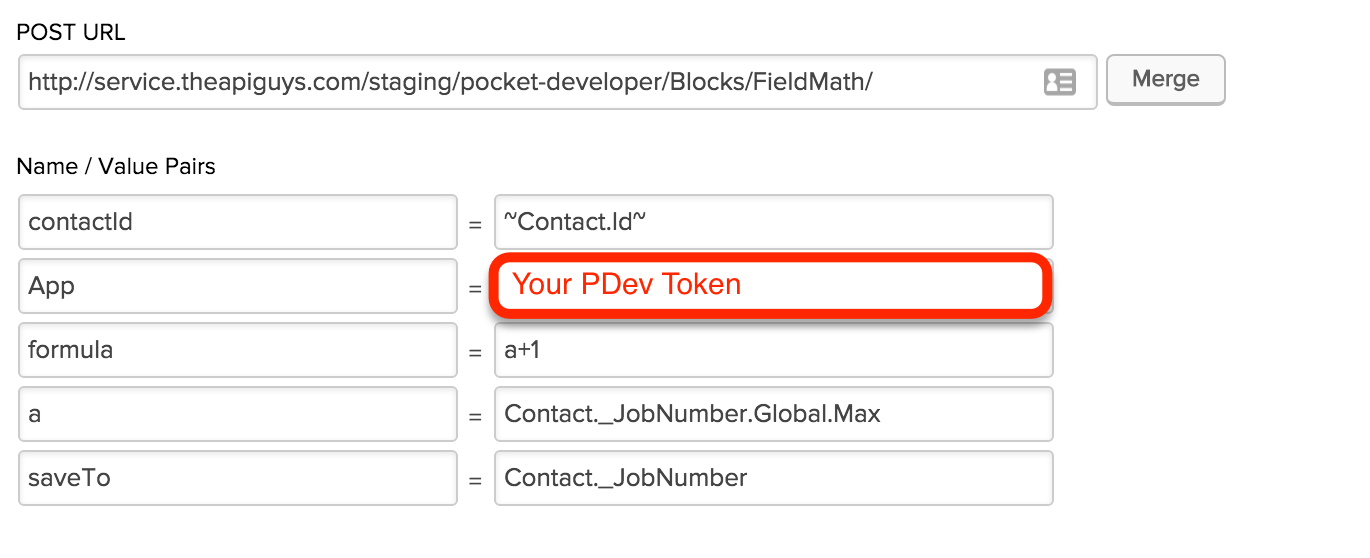
    FieldMath_JobNumber_increment

    1. Create a custom field on the record type you want to sequentially number.
    2. Add a Field Math HTTP Post in a campaign sequence at the point you want the number to increment, such as immediately after a purchase or entry into a particular opportunity stage.
    3. For the variable, use the custom field name plus .Global.Max to get the max value currently stored in that field on any record.
    4. For the formula, use a+1.
    5. For the saveTo field, use the custom field name (no tildes!).

    When the contact reaches that part of the campaign, Field Math will find the highest value of the number in that field on any record, add one, and save the number into the field on the current record. The record will be numbered sequentially.

  • Pocket Developer Release 1.0.1

    We’ve been working hard to improve Pocket Developer and to improve our update process. Today’s release marks a new beginning!

    • Subscription Handling plugin set (Activate, Deactivate, and UpdateNextBillingDate) added.
    • GeneratePassword now includes a parameter called ‘excludeAlpha’ which will allow the plugin to generate a random number.
    • GeneratePassword now includes parameters called ‘prefix’ and ‘suffix’ which allow the plugin to add a designated prefix or suffix to the generated password.
    • EmailAnyone now accepts a ‘subject’ parameter to override the subject field.
    • Universal Delay Timer now allows you to store a log of upcoming scheduled calls and recently executed call in a custom field.
    • “Subscription” can now be used to refer to the RecurringOrder table.
    • HTTP Post Generator UI updated.
    • Common plugin features have been consolidated into one location for easily updating, including Prefetch and Advanced Merge Field Notation.
    • Simplified process implemented to allow us to release updates faster in the future.
  • How to send billing reminders for upcoming subscription payments

    The problem: You want to send customers an email that their subscription payment is coming up.
    The usual solution: Set up a billing reminder loop sequence
    A loop sequence runs repeatedly when triggered from a tag that is removed at the beginning of the sequence and added again at the end. With delays set correctly, a looping sequence will run indefinitely on the prescribed time frame.
    1. Set up a campaign that triggers when a tag such as “Trigger Next Billing Cycle” is added.
    2. Add five elements to the campaign.
    a) Remove tag “Trigger Next Billing Cycle”
    b) A delay of the subscription payment interval minus the number of days in advance you want to notify the customer that payment will occur. (For example, if the subscription is paid every 30 days and you want to notify them two days in advance, set the delay for 28 days.)
    c) The email to be sent
    d) A delay of the number of days in advance you are notifying the client
    e) Add tag “Trigger Next Billing Cycle”
    3. Make sure the product purchase adds the “Trigger Next Billing Cycle” tag.
    Shortcomings of the usual solution:
    1. The notification date approximates the billing date, but may not be precise.
    2. You can’t put the date of the actual billing in the email.
    3. If the date of the subscription billing is changed manually, the contact’s billing cycle campaign must be manually adjusted as well.
    4. The process runs indefinitely, so if the subscription is cancelled or limited in number (a payment plan), the notification campaign must be turned off manually or via some other process.
    TAG Solution: Store the “Next Billing Date” in a field on the contact record.
    When the Next Billing Date is stored in a field on the contact record, you can use a field timer rather than a delay timer to send out the notification email. (Note: The field you use must be a DATE type field. It can be a custom field you create or an existing field such as Anniversary. DATE/TIME fields will NOT work.)
    1. Set up a campaign that triggers when a tag such as “Trigger Next Billing Cycle” is added.
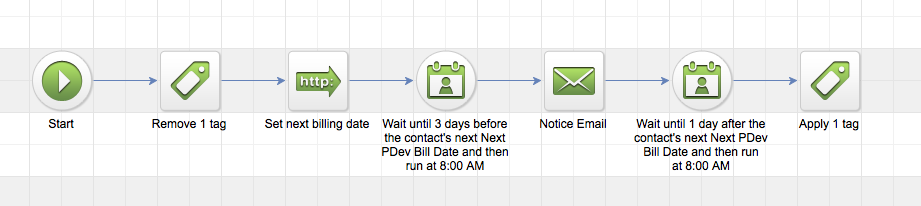
    2. Add elements to the campaign.
    Screenshot 2016-01-18 12.17.47
    a) Remove tag “Trigger Next Billing Cycle”
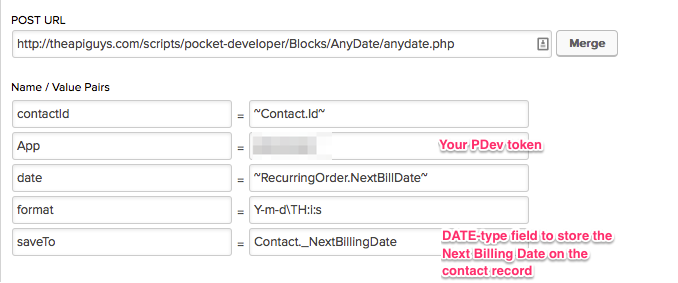
    a) An HTTP Post for AnyDate to write the next billing date from the subscription to the Next Billing Date field
    HTTPPost_AdvanceBillingNotices
    b) A field timer set to run the appropriate number of days before the Next Billing Date
    c) The email to be sent
    d) A field timer set to run the day after the Next Billing Date
    e) Apply tag “Trigger Next Billing Cycle”
    3. Make sure the product purchase adds the “Trigger Next Billing Cycle” tag.
    This campaign uses the actual billing date on the subscription to trigger the notifications. Because the Next Billing Date is stored in a field on the contact record, you may choose to merge that date into the email. Additional PDev plugins to ActivateSubscription, DeactivateSubscription, and UpdateSubscriptionBillingDate plugins to handle changes in subscriptions and stop, restart, or change the billing notices along with the subscription dates via notes applied or other triggers.

    NOTE: If customers may have more than one subscription, multiple campaigns and Advanced Merge Notation will be needed to ensure selection of the correct Next Bill Date from the correct subscription.