- The prefetch parameter will grab the contents of the merge field in its value column and store it as a variable. The variable label in brackets of the prefetch parameter can be whatever you want (avoid spaces and special characters). You will use this same label in braces in the value of your textToSave parameter to place the contents of the merge field where you want it.Example: for prefetch[oldtext]=~Contact.ContactNotes~, use the following formats in the textToSave value.
To prepend: Text you want to add. {oldtext}
To append: {oldtext} Text you want to add. - Use Infusionsoft’s Date merge fields to add a date.
- The text
\nwill create a line break.
Category: Previous Post
-
How to prepend or append field content using AnyText
-
Quick Tip – How and When To Delete Tags
Summary:
In the How/When to Delete Tags Quick Tip, 2014 Infusionsoft Partner of the Year, Kim Snider, sprints through a very brief but very helpful demonstration of proper procedure for Tag deletion within Infusionsoft.
Campaign Builder Do’s & Don’ts:
Time Stamped Show Notes:
- 00:01 – Introduction from Kim Snider
- 00:10 – The #1 reason for app slowness is too many Tags applied to too many Contacts
- 00:23 – To correct for this, do housekeeping on a fairly regular basis of both Tags and saved searches
- 01:09 – How to Start the clean-up
- 01:11 – The first thing: When going to Tags, IDENTIFY where specifically the Tag is to be APPLIED
- 01:54 – Doing so will allow you to determine whether or not the Tag should really be deleted
- 02:09 – To Delete, go to the Campaign and DELETE where the Tag is being APPLIED
- 02:29 – An example of this
- 03:05 – The IS prompt displayed when clicking the “DELETE THIS TAG” icon
- 03:45 – If a Tag is not applied to a campaign, it’s not really necessary to worry about deletion. IF, however, the Tag is applied to a campaign, make sure to delete the Tag from the Campaign FIRST
- 04:21 – Kim’s Contact Info and End of Quick Tip
-
Quick Tip – New and Improved Infusionsoft Delay Timer
Summary:
Quick Tip – New and Improved Infusionsoft Delay Timer:
Time Stamped Show Notes:
-
The Top 10 Tools to Make Infusionsoft Move
Many of you probably already know this but Infusionsoft is great. It’s a resource that can do a number of incredible things natively and do them amazingly well.
What you may not know is this:
It’s the 3rd party apps and resources that really make Infusionsoft hum
To get beyond the very good (but basic) functionality of Infusionsoft and start generating some serious ROI through the power of automation, you (the user) are going to need some non-native functionality.
That functionality comes in the form of 3rd party apps and services. Tools like Zapier and ScheduleOnce (just to name a couple) are making the lives of Infusionsoft users incredibly more profitable thanks to the problems they solve or steps they eliminate.
Best of all, this ecosystem of apps and services is GROWING rapidly and Infusionsoft has big plans to better incorporate these kinds of tools into the IS marketplace sooner than you think.
In the meantime, we want to help you get the absolute MOST out of your business. That’s why we carefully curated the following list which features some of the best 3rd party tools on the market for supercharging Infusionsoft.
If you’re willing to take the time and review the wealth of information included in our The Top 10 Tools to Make Infusionsoft Move, we promise you’ll be able to avoid some of those notoriously pesky Infusionsoft-headaches and start crushing your ROI goals.
Hosting – Elite Pro Hosting
Kicking off with Elite Pro Hosting, what’s not to love for us Infusionsoft users?—This is a webhosting company that designed its entire service around meeting the needs of IS powered websites!
Traditional webhosting services (like AWS) are built to provide lots of processing power, but very little memory. The end result? Infusionsoft powered websites, particularly sites that feature a high volume of API calls like membership sites, L-A-G and lag badly.
Elite Pro Hosting was specifically created to satisfy the inverse demands of those in the Infusionsoft-space. So while your IS-powered site may crawl with other hosting services it is going to FLY with Elite Pro.
Best of all, Elite Pro Hosting eats their own cooking. This is a company that not only uses Infusionsoft to run their business and uses their own hosting platform, which means they are constantly pushing their product to the max, a serious benefit of their customers.
Additional perks include:
- 2-Day setup
- 24/7 tech support
- High capacity for large volumes of API calls
- A premium hosting package is less than $100 a month
Membership Site – Memberium
As membership sites go, this one takes the cake—Just as long as you’re a WordPress user.
Memberium gives its users complete control of their branding and presentation efforts for membership. That includes total domain dominance; no being forced to include another company’s domain with yours!
Access one of thousands of existing WordPress themes or build out your own to create a membership site with a complete unique feel.
What else is there to love?
- Home Cooking—Memberium uses their own platform
- Super Scalable—Memberium can slide to scale on the fly
- Price Protection—Not only do they offer new customers a 30-day money-back guarantee but Memberium will NEVER increase your billing rates as long as your subscription remains current
Most importantly, Memberium was built with and for Infusionsoft users in mind. It runs at super speeds and provides stellar support…Few if any other membership platforms can say that!
Appointment Scheduling – Schedule Once
There is so much literature available on the web praising the glory that is Schedule Once we need not bore you with the details here. What we will say, however, is that we love this app for its elegant design, neat Infusionsoft integration (which tags contacts continuously as they move through different stages), and delightfully low cost.
Landing Pages – ClickFunnels
If you didn’t have a chance to check out our blog posting on ClickFunnels, take a look at it now. It does a great job of explaining why we like CF more than Lead Pages or Optimize Press.
Addressing the matter here, ClickFunnels is a landing page designers dream because functionality is not tied to price. All of their tools, tips, tricks, templates and utilities are included with their basic $97 start-up subscription. Even though ClickFunnels is only 12-months old, we have been blown away by how quickly they have been able to design and implement new tools and features.
Ultimately, the real value here is in ClickFunnels ability to beautify your pages with the greatest of ease. We all know that Infusionsoft doesn’t make the prettiest of pages which is why having something like Click Funnels in your arsenal can be a real boost to your business.
Sometimes it’s an amazingly appealing UX can be the difference between modest and momentous conversation numbers!
Web Site Security – Sucuri
In this day and age, if you don’t have website security you’re not just doing it wrong, you’re doing it dumb. If you don’t believe us give Marc Goodman’s Future Crimes a read.
Website security is a very real requirement if you want to operate a successful business in the digital space. Taxes, receipts, billing statements, invoices, payroll, credit cards; these all have a very real and very accessible presence online. If you’re not taking adequate precautions now, the first time your business gets hacked is going to be a brutal wake-up-call.
But forget about the safety of your business for a second…what about the safety of your customers? If your company gets hacked not only is your information in jeopardy, but the information of anyone you’ve ever done business with is at-risk as well.
You don’t want something like that on your conscience…trust us.
Sucuri offers complete website security for your business with powerful malware detection, prevention and cleanup services.
Right now, as you read this, Sucuri is servicing over 250K domains, stopping 33M attacks per month and cleaning more than 300 websites a day on average.
Additionally, Sucuri publically archives all the malware they encounter on their Sucuri Labs database and maintain an unbelievable (and free) knowledgebase on everything imaginable related to web-security.
Video Hosting – DilogR
For longer than we care to remember we’ve been Wistia people, but that all changed with the arrival of DilogR.
At its core, DilogR is a video hosting platform (though they do have other services) and as far as we’re concerned it is the best video hosting platform available.
Basic features include:
- Customizable video chaptering
- Redirect links
- Pop-up Q&A
- Real-time analytics (views, drop-rate, geo-location, device used, etc.)
But DilogR’s best asset (by far) is the trigger automation it can run in Infusionsoft based on how much of a given video is watched. This is just a killer feature and one that will be immensely helpful to your business.
Do note that while there is no maximum video upload size, different subscriptions have different levels of storage so buyer beware.
Surveys and Assessments – DilogR
When we said we were DilogR divas we really meant it:
This is the pinnacle of interactive content, people!
From images and slideshows to quizzes and surveys, DilogR’s tools, functions and features make interacting with your internal or external community an absolute breeze.
Perks include:
- Automated follow-up emails
- Hidden lead-capture fields
- Searchable merge fields
- Flexible call-to-action buttons
Bountiful platform integrations and a special knack for singing in harmony with Infusionsoft means we can’t say “no” to their indispensable service.
PDF Creation – WebMerge
No one genuinely enjoys creating PDFs for their business (especially when it involves merging data out of Infusionsoft) but, just like paying taxes, it’s simply something we have to deal with.
With that in mind, WebMerge is the fastest way to streamline the data merge to documentation processes that all too frequently mire people and resources in digital muck.
Using WebMerge, you can quickly and effortlessly merge data from Infusionsoft (purchase records, contact records, etc.) into a clean PDF.
From there, you can have WebMerge collate and deliver those pretty little PDFs using almost any delivery method imaginable (Box, Google Drive, Dropbox, etc.).
From an Infusionsoft-user perspective this is a HUGE timesaver!
Additional WebMerge features include:
- Flexible merging with MS Office (.doc, .xls, .ppt)
- Fillable PDFs so you can type directly into the document
- Simple data marriage: Integrate & Automate, upload using a spreadsheet or just manually enter data
Easy Integrations – Zapier
Zapier is an inexpensive and fabulously easy way to make 3rd party apps chat with each other over coffee without the need to know how to code.
Operating along a very simple “If-This-Then-That” logic, Zapier will use your triggers to fire your actions with the need for any manual oversight.
Though not entirely free (premium apps come at a small cost), Zapier is nonetheless affordable and, frankly, well-worth any expense it may incur given how valuable it is as an integration service.
Not sure which app you might want to take advantage of?—Checkout the Popular Zaps section for fresh and trending ideas.
Reporting – Graphly
Graphly just won the 2015 Battle of the Apps – so you know they must be doing something right – and they are the first-ever dashboard reporting tool built exclusively for Infusionsoft.
Whether you’re looking for a department-specific tool or something that can monitor the various segments of your business, Graphly can tackle any imaginable reporting need. From monitoring web traffic and lead-sources to meticulously measuring funnel conversion and sales rep performance, Graphly will help you optimize your operation.
Custom charts and graphs are completely encouraged but prefabricated reporting templates are also available for those who need them.
When it comes to accessibility, Graphly makes sure your data is available when and where you need it. Reach your reports anywhere, anytime and over any device.
Training – The Art of Campaign Building Foundations Course
Finally, we reach the end:
The Art of Campaign Building Foundations Course
It may seem like a conflict of interest, but we wouldn’t plug it if we didn’t believe it was the absolute best way to turn yourself from an Infusionsoft zero into an Infusionsoft HERO!
For $500 you can enjoy a deep-dive into the wide world of Infusionsoft, with a particular emphasis on how to maximize your usage of Campaign Builder.
Five-hundred greenbacks might seem like a lot money (because it is!), but when you consider that’s just a fraction of what you would spend to attend a weekend at Infusionsoft University in Phoenix, AZ we think our Foundations Course is a pretty smart investment.

-
5 Cool Things You Can Use Google For
At this stage of the game, it should come as no surprise to anyone that Google does way more than enable web-enthusiasts to quickly and efficiently search the internet.
Gmail, Google Calendar, Google Translate, Google Drive…the list can go on and on and on.
Google developers have created so many algorithms, apps, programs and digital gizmos that there are probably more than a few you haven’t heard of or, at the very least, aren’t familiar with.
Fortunately for you, Business Insider – Australia decided to catalogue five of their favorite Google features that most people – us included – don’t know about.
- Set up a Timer
This one is as cool as it is convenient. Whether you’re looking to perfectly hard-boil an egg or just measure how long it takes to read your emails in the morning, a timer is going to be immensely helpful. Simply go to www.google.com, enter whatever time you need in the search bar followed by the word “timer” (example: “one minute, timer”) and you’re good to go.
An amazing alliance has been formed and it’s too fun to ignore. Google partnered with LEGO to build a web-based application enabling users to get creative in ways previously unimaginable. By visiting Build With Chrome, people can use digital LEGOS to construct anything their heart desires from existing cities and structures to top-hat wearing dinosaurs.
- Number Speaker
Ever see a number with so many zeros your head starts to spin? We have. Number Speaker is another feature available within the Google search bar that helps the less mathematically inclined verbally digest the value of a given figure. Just type a number into the search bar (example: “1,000,000”) and follow said number with an equals sign (=) as well as the word English (1,000,000=English).
- Google Sky
At one stage or another, we all looked to the stars with childlike wonder and now Google is looking with us. In its simplest form, Google Sky is basically Google Maps for space, enabling users to explore the intricacies of our solar system and beyond without straining their eyes or reaching for a telescope. Though we’re not sure how they did it, we’re glad they did!
Tired of choosing between Comic Sans, Times New Roman and Helvetica for your webpage? Google has taken the liberty of broadening the tired horizons of type font for those in desperate need of something fresh. Sort through the existing font families by name, date-added, popularity, etc. or start building your own custom font in any script (Latin, Arabic, Cyrillic, etc.) you want.
As helpful as we hope these five tools might be, are there some lesser known Google apps, tips or tricks that you love but we failed to mention?
LET US KNOW.
Growing The API Guys’ knowledge base is impossible without the vital and much-loved input of those around us.
Remember, we’re all in same tribe at the end of the day! 🙂
-
Definitive Guide To Infusionsoft Automated Contracts
If you would like to see the process we are about to describe, try it out on the companion site to this post.
Step One – Install Plugins, Scripts and Code Snippets
1) Purchase and install the Gravity Forms Developer License and activate the Signature Add-On.
DISCLAIMER: The purchase link for Gravity Forms is an affiliate link. If you click it and then buy, we earn enough to put some Diet Dr. Pepper in the fridge.
2) Download and install the URL-Params plugin from the WordPress plugin repository. All you have to do with this one is install it and activate it.
3) Next, we are going to add a snippet of code, called the gform_email_fields_notification_admin hook to your functions.php file in your WordPress theme directory.
Using FTP, navigate to your theme folder. It will be located in a sub folder of your web site directory, (often called www or public_html.) The path will be /wp-contents/themes/YOUR_THEME or YOUR_THEME-child. This is what it looks like on my server:

Click to enlarge and view animation Copy the following code:
[php]
add_filter(‘gform_email_fields_notification_admin’, ‘add_field_to_email_list’, 10, 2);
function add_field_to_email_list($field_list, $form){// Adds field with ID=1 to the list of email fields
foreach ($form[‘fields’] as $field) {// This ID must match your email field on contract form
if($field[‘id’] == ‘1’)
$field_list[] = $field;
}return $field_list;
}
[/php]NOTE: Lines beginning with “//” denote comments explaining what the subsequent chunk of code does. They also sometimes point out things you can change or customize in the code. Reading through them will help you get a judo grip on the code and its nuances and let you cater the code to your needs.Scroll to the bottom of your functions.php file and paste the code there. Be sure to Save. This is what it looks like in my file, in case WordPress goobers up the code above, which it sometimes does 🙁

Click to enlarge and view animation NOTE: If you create a form, in the next step, that has an email field ID not equal to 1, you will need to come back to this file and update the line that says “if($field[‘id’] == ‘1’)” by changing the number to the ID of your email field.
Step Two – Create Contract Template In Gravity Forms
1) Create a new Gravity Form. You will use this form for your new contract template.
2) The first thing you want to do, once you have the new form created, is go over the the right hand side of the Form Editor and click one time on the Hidden button.

Click to enlarge and view animation Change the Field Label to Email. On the Advanced tab, Put a check next to Allow Field To Be Populated Dynamically. Then in the Parameter Name field, put “email”.Rinse and repeat for each piece of dynamic data you will be sending from Infusionsoft to Gravity Forms to be included in the contract. In this case, we will use first name, last name, email address, hourly rate and today’s date.
NOTE: For the parameter name of the dynamic field, you can use any name you want. However, it is best to keep it short because it will be passed in an email query string. Also, write down the parameter name you used because you will need it later.
3) Add an HTML field for your contract text.

Click to enlarge and view animation You will want to style the HTML, with CSS to get the look you want in the contract.It may be helpful to use multiple HTML fields, for complex contract designs, to give you more control over the PDF template later.
In the HTML, you will substitute short codes for the dynamic data, like so:
Note that the parameters, in the shortcodes, MUST be the same as the parameters you used in the hidden fields and the query string in the Infusionsoft email we will construct in Step 5.
Finally, go to Advanced Fields and add a signature block.

Click to enlarge and see animation 4) Set up your Notifications – these will automatically include the signed PDF
5) Add your form to a page or post
Step Three – Create Contract Template In Gravity Forms PDF Extended Plugin
1) Download and install the Gravity Forms PDF Extended plugin from the WordPress plugin repository.
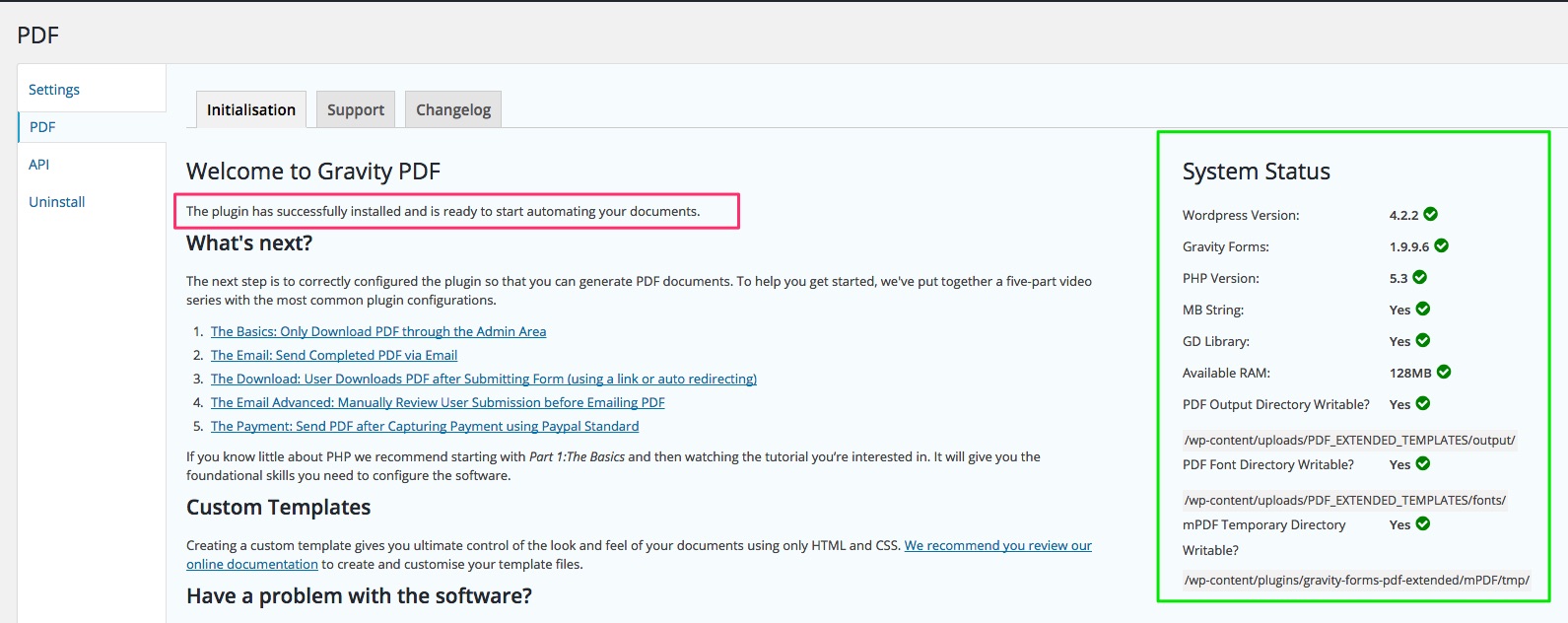
NOTE: Once installed and activated, you must initialize the plugin by going to Forms -> Settings -> PDF.

Once you open this settings page, the plug-in automatically initializes. You can se it also shows you, on the right side, that all of the requirements for running the plug-in are met. If the plug-in does not initialize, check these settings to help troubleshoot.
ANOTHER NOTE: We really, really recommend you read the documentation for this plugin. However, for those who never read the manual – and you know who you are – here’s the basic instructions for how to set it up …
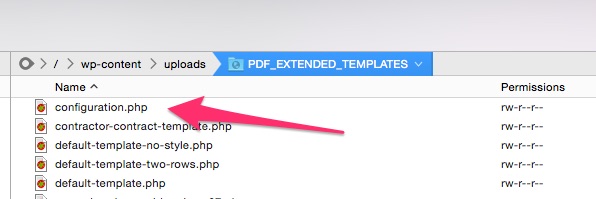
2) Modify configuration.php
Using your text editor, open the configuration.php file in the plug-in directory of your active theme. The path will be YOUR_WEBSITE_DIRECTORY/wp-contents/uploads/PDF_EXTENDED_TEMPLATES/configuration.php.

Scroll down to the the section called Bare Minimum Configuration Code. For each form you intend to use for signed PDFs, you will need to include the following code in this section …
[php]
$gf_pdf_config[] = array(
‘form_id’ => 1, // This is the id of the Gravity Form you want to use
‘template’ => ‘default-template-no-style.php’,
‘save’ => true,
‘notifications’ => array(‘Admin Notification’, ‘User Notification’)
);
[/php]Be sure to SAVE.
3) Fill out your contract form to create a form entry
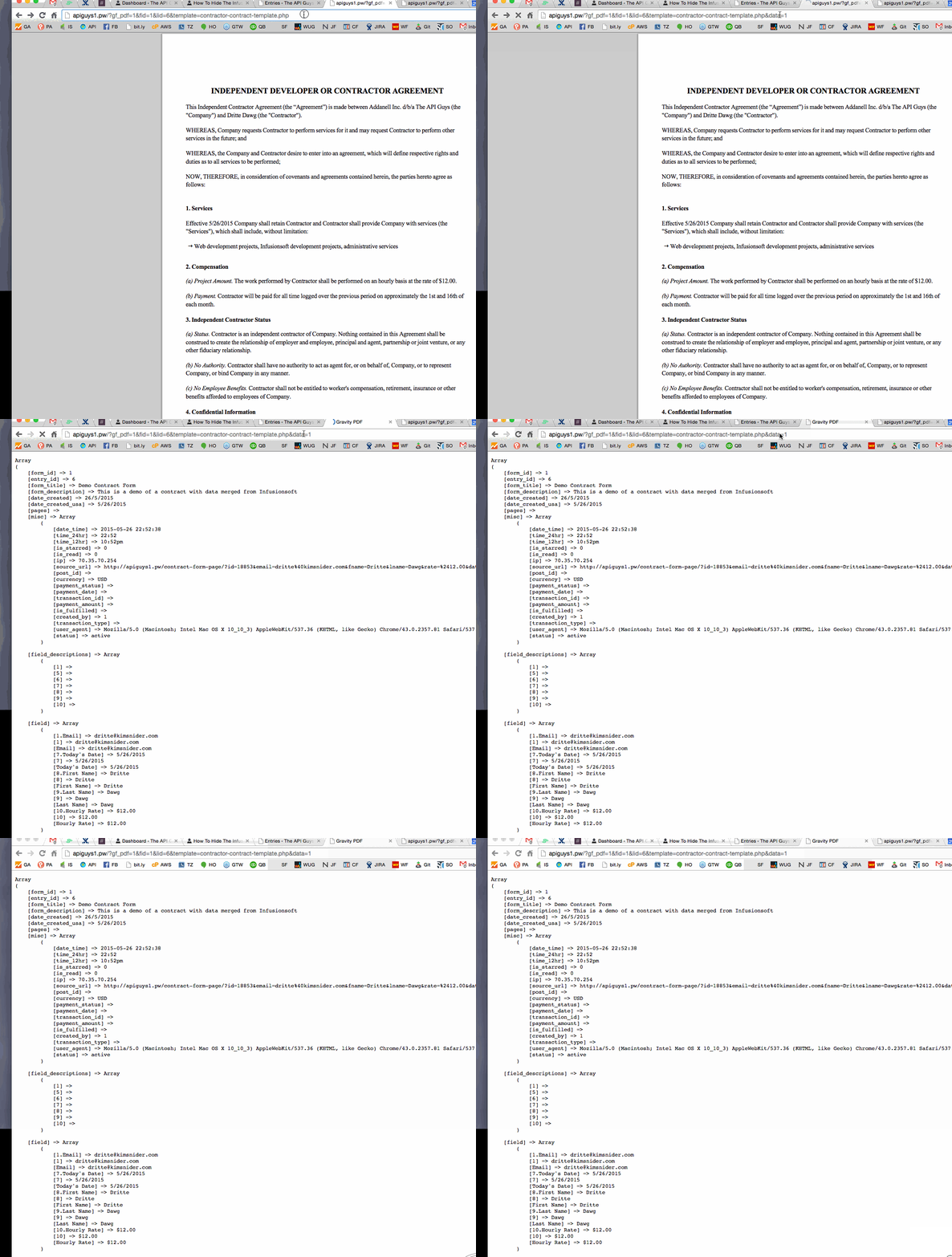
You can do this either in the Preview mode of the Form Editor or by viewing the page where you added the form. In the WordPress Admin, go to Forms -> Entries. Hover over the entry you just created. You should now see a link to “View PDF”. Click that to open the unstyled PDF.To see all of the fields available and their field ID numbers, add “&data=1” to the end of the URL and hit ENTER. (NOTE: This only works for templates beginning with “example-” or based off an example template)

Click to enlarge and view animation Note the data type (e.g.
[html][/html]
or [field] or [signature]) and the array position number (for fields, this will be the same as the field number; for html fields and signatures it will start at [0]), for each piece of data you want to show on the pdf. Write them down for use further on.
4) Modify or create a template for your PDF
NOTE: You are creating two different versions of your contract. The first one was on the form that gets filled out. The second is the PDF output of the form. They can be the same or different. That is up to you. For purposes of this example, we will assume you want them to look roughly the same.
Start with the file example-template.php as a base. Make a copy and give it a unique name. Leave it in the YOUR_WEBSITE_DIRECTORY/wp-contents/uploads/PDF_EXTENDED_TEMPLATES/ directory.Scroll down to approximately line 23. That is where the HTML starts. The example includes lots of hints for constructing the HTML template for your PDF. The other examples in that folder do as well.
Replace example HTML with your HTML. Anywhere you want to include dynamic data from the form, you will insert PHP code, like this, to pull the form data into your HTML:
[php]<?php echo $form_data[‘field’][17]; ?>[/php]
This pulls from Field number 17. Or, to pull from the first HTML Block on the form:
[php]<?php echo $form_data[‘html’][0]; ?>[/php]
Again, to see the fields available and their IDs, just add “&data=1” to the URL of any PDF you are viewing that is based on an example template (like the one you are creating.)
NOTE: There are two ways to construct the form. One is to recreate all of the HTML in the template and insert the field values as shown above.
Another, which may be easier when your form is fairly simple, is to pull in the HTML block from the form, rather than duplicating the html here.
5) Adjust your configuration.php to point to the correct template
Go back to your configuration.php file in YOUR_WEBSITE_DIRECTORY/wp-contents/uploads/PDF_EXTENDED_TEMPLATES/.
Modify the name of the template for each for you wish to turn into a PDF:
[php]
$gf_pdf_config[] = array(
‘form_id’ => 1,
‘template’ => ‘my-new-contract-template.php’,
‘save’ => true,
‘notifications’ => array(‘Admin Notification’, ‘User Notification’)
);
[/php]SAVE and Close.
Step Four – Edit the PDF To Infusionsoft Script
1) Download the PDF to Infusionsoft script. Unzip the file and place both of the unzipped files (infusionsoft-settings.php and pdf-to-infusionsoft.php) in a new folder called “pdf-to-infusionsoft”, inside the Plugins folder of your active theme (YOUR_WEBSITE_DIRECTORY/wp-contents/themes/YOUR_THEME/plugins/pdf-to-infusionsoft/…).
Log in to your WordPress site and go to Plugins. You should see the PDF to Infusionsoft plugin. Click the link to Activate the plugin.Now, go to Settings, in your WordPress admin, and you should see PDF to Infusionsoft appear in the list of settings. Choose it.

Add your app name and the path to the Infusionsoft SDK. This is the file(s) that connect to the Infusionsoft API. If you have not previously used the Infusionsoft API, you will have to set this up now, according to the instructions here.

Click to enlarge and view animation Add the ID of any and all forms you want to send to Infusionsoft as PDFs.
Step Five – Create Your Infusionsoft Email Link
1) Create a new automation link that includes all merge fields needed for the contract
Go to Marketing -> Settings -> Automation Links -> Automation Link -> Create Link
Give the link a name.
Construct a link like this:
https://tag-2025.local/contract-demo/?id=~Contact.Id~&company=~Contact.Company~&email=~Contact.Email~&first=~Contact.FirstName~&last=~Contact.LastName~ where the URL before the ? is the URL of the web site page where you added the Gravity Form contract in Step 2.5.
NOTE: Everything after the ? is known as a “query string” and it has a pattern of key=value separated by &’s. In this case, the key is the parameter name you put in the Gravity Form fields in Step 2.2. The key must match the parameter you chose in Step 2.2 for the data from Infusionsoft to pass to the Gravity Form contract. The value (the part after the =, is a standard Infusionsoft merge field.
Include as many key value pairs as necessary to pass all needed information from Infusionsoft to Gravity Forms
Change “What do you want the customer to see when they click this link?” to the link you just constructed.
Add Link Text as necessary and Save.
Step Six – Test It Out
1) Send an email to yourself, from a contact record, containing your Contract Automation Link. Make sure your necessary merge fields have something in them.
2) Click the link from the email. It should:
- Take you to the page on your website that contains the Gravity Form contract
- Pre-populate any fields you displayed or URL parameters you included in the HTML
- Have a signature box at the bottom for you to sign and Submit
3) Submit the form. It should:
- Send an email to you (the admin) saying someone has filled out the form
- Send an email to you (the contact) that includes a PDF of the signed contract
- Put a copy of the PDF in the contact’s Infusionsoft filebox
Step Seven – Troubleshooting
If the email does not take you to the contract page on your website:
- Check that the page was created properly,
- that the Gravity Form was added to the page,
- and that the URL in the automation link starts with the URL for that page
If the form doesn’t pass the data you included in the query string:
- Remember anything you chose Hidden Field will be just that
- Make sure you checked “Allow Field To Be Populated Dynamically”
- Make sure the left side of each key value pair, in the query string, matches the parameter name in “Allow Field To Be Populated Dynamically” exactly, including capitalization
- Make sure the URL Parameters plugin is installed and activated and that any URL parameter short codes are configured properly
If the form doesn’t send notification emails:
- Confirm that the Notifications were set up in the Form Settings
- Confirm you are using the correct merge fields and/or sending to the correct email address
If the notification email does not contain the PDF:
- Confirm the PDF is being created properly by checking it under Forms -> Entries -> View PDF (on hover)
If the contact’s filebox does not contain the PDF:
- Confirm your API key has been set up in Infusionsoft,
- the iSDK and other necessary files are present on your server,
- the conn.cfg.php file has been configured properly
- and the PDF to Infusionsoft plugin is properly configured with the path to the iSDK and correct app name.
- You can also check the error log files on your server for clues.
-
Infusionsoft Tips: Labels and Notes
Last week, we discussed creating a solid business laden with “best practices” that will yield superior results.
This week, we are going to show you a “must” best practice for your business, that will not only help you yield superior results, but also save you an immeasurable amount of time.
Drumroll please…
Label every single snippet, sequence and goal in your campaign, and include notes for what each campaign does.
Can you imagine the nightmare taking on a new client and opening up the Infusionsoft application only to discover there are no notes in the campaigns?
Emails are simply labeled Email #1, Email #2 and Email #3…
Goals are not defined…
Snippets are not labeled…
Oy vey…this occurs more often than you may think.
Notes and labels are imperative to your Infusionsoft success and – like we mentioned last week – if you don’t create them when you’re building the campaign, you won’t do it later.
Now, labeling can be tedious so be sure to factor in ample “labeling time” when building out your campaign. The more descriptive you can be the better, but there’s no need for you to write a book—just clear, concise labels and notes.
This will allow you to easily identify and copy sequences, campaigns and emails from one campaign to another. It will also help others better-see the picture you have painted on that beautiful Infusionsoft canvas.
When you incorporate label and note making into your business best-practice list, you make life easier for yourself and others.
You also guarantee yourself better results because you’ll end up spending less time figuring out “what’s going on?” and more time creating a well-documented, revenue generating campaign.
To get access to even more incredible Infusionsoft tips, we invite you to join us in our next Art of Campaign Building Foundations Course. During session one, we will get into the nitty-gritty of Campaign Building Practices.
The course is now available as an online course! To learn more about the Art of Campaign Building Foundations Course click here.
-
How To Hide The Infusionsoft Campaign Builder Toolbox
Summary:
- 00:05 – Introduction: Kim Snider, Founder of The API Guys
- 00:15 – Today’s hack is this: When in Campaign Builder – particularly when testing a campaign – the Campaign Builder toolbox is always in the way … today we’ll show you how to hide it
- 00:50 – We are going to do this by installing a script in the browser
- 01:02 – The script will add a button that normally isn’t there “Show/Hide Toolbox”
- 01:15 – The button will also appear when you’re in a Sequence
- 01:30 – To do this you will need two things:
- 01:33 – A user script manager in your browser (For Chrome TamperMonkey is recommended, for Firefox GreaseMonkey)
- 03:28 – The other item need?—The API Guys script — Which can be obtained by registering (for free) as an API Guys Tribe member and then logging-in to access The API Guys Script Library
- 04:22 – Within The API Guys Script Library, look for the Hide Toolbox script
- 05:10 – How to add the script to GreaseMonkey
- 05:20 – Go up to the Monkey icon in the browser and select New User Script
- 05:25 – Select Use Script From Clipboard
- 05:37 – Select Save
- 05:56 – To confirm, go to Manage User Scripts
- 06:40 – Checking to see if the script is running in Infusionsoft
- 06:58 – How to add the script using TamperMonkey
- 07:14 – Hit the Add a User Script button
- 07:24 – Paste the script from the clipboard and click Save
- 07:56 – To enable/disable the script go to the TamperMonkey toolbar
- 08:12 – Checking to see if the script is running in Infusionsoft
- 08:30 – Kim’s contact information
- 08:59 – Art of Campaign Building Foundations Course
- 09:19 – Join The API Guys Tribe!
Credits:
Notes provided by Mike Rossi